

 Jackson Lane

Are you getting overwhelmed by the blank browsing experience? Reasons could be many, such as failure in DNS propagation or a misconfigured record. DNS resolve commands provide complete resolution to such issues.
These commands allow you to trace any query record type, follow the resolution path, and compare responses from DNS providers such as Google Public DNS, Cloudflare DNS, OpenDNS, and Quad9. Understanding how to use them is crucial before diving into the specific tools.
The tools are available on every OS, need no installation in most cases, and are used frequently by sysadmins, DevOps engineers, and developers who work with networked infrastructure.
Table of Content
DNS resolve commands — quick overview block before blog intro
DNS resolve commands — quick overview
dig · nslookup · host
🔍 Domain not loading? DNS changes not reflecting? You’re in the right place.
Most DNS issues can be diagnosed in under a minute — directly from your terminal — using three built-in tools: dig, nslookup, and host. These commands show exactly what IP your domain resolves to, which nameserver responded, and whether recent DNS changes have propagated yet. No third-party tools, no guesswork.
Three tools built into Linux, macOS & Windows — zero setup required
3
commands covered
in this guide
tap to learn more
A cached DNS query resolves in milliseconds — most issues diagnosed under 60 seconds
<60s
to self-diagnose
most DNS issues
tap to learn more
All three tools ship pre-installed — just open your terminal and run the command
0
installations needed
pre-installed on all OS
tap to learn more
dig
🔎
Full DNS response with TTL, query time & nameserver detail
🐧 Linux
🍎 macOS
nslookup
🖥️
Simple cross-platform lookup — works identically everywhere
🐧 Linux
🍎 macOS
🪟 Windows
host
⚡
Leanest output — ideal for quick checks & shell scripts
🐧 Linux
🍎 macOS
Key Summary — DNS Resolve Commands
- 1 Blank/failed page loads are often DNS issues, not server or code problems.
- 2 DNS propagation delays after a record change can leave sites unreachable for hours.
- 3 Misconfigured records (wrong IP, typo, missing entry) are the other common culprit.
- 4 DNS resolve commands (dig, nslookup, host, etc.) let you pinpoint which one you’re dealing with.
- 5 They work by querying DNS servers directly, skipping the guesswork.
💡
This article walks you through the DNS resolve commands.
How Does DNS Work?
Now that you know which tools you’ll be using, let’s quickly review how DNS resolution actually works to better understand the results you see from these commands.
DNS (Domain Name System) is the internet’s phonebook. It translates human-readable domain names (such as example.com) into machine-readable IP addresses so browsers load resources. Here is the complete resolution process that needs to be followed:
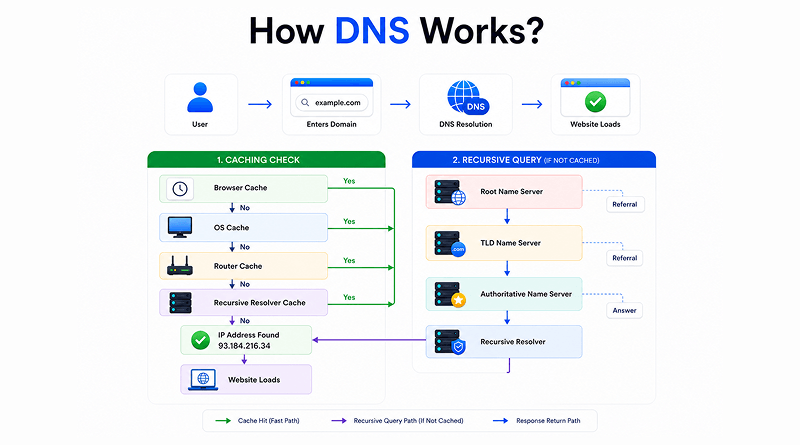
The Caching Check
Before sending requests across the internet, the device checks four layers of cache for the IP address:
- Browser Cache: The browser tracks the record of recent website visits.
- OS Cache: Your operating system checks its local cache.
- Router Cache: The request goes to the local network router.
- ISP/Recursive Resolver Cache: If unable to locate, the device queries your ISP (Internet Service Provider) or a public DNS resolver (e.g., Google or Cloudflare).
The recursive query (if not cached)
If the recursive resolver doesn’t have the IP address stored, it acts as a middleman and queries four specific web hosting servers in order:
- Root Name Server: The top of the DNS hierarchy. It acts as an index, directing the resolver to the correct TLD server (e.g., .com or .org).
- TLD Name Server: The server manages the information for specific domain extensions. It directs the resolver to the authoritative name server for the specific domain.
- Authoritative Name Server: It holds the real DNS records for the domain and provides the resolver with the requested IP address.
When you type the domain name into the browser, a global DNS network works together to translate it into an IP address.
Your device first contacts a recursive resolver, provided by your ISP or a public service like Cloudflare (1.1.1.1) or Google (8.8.8.8), which does the heavy lifting on your behalf.
Glossary: A recursive resolver is the first stop in a Domain Name System (DNS) lookup.
If the answer is not cached, it asks the root server, which directs it to the right TLD server, which in turn points to the domain’s authoritative server.
That authoritative server holds the actual DNS records:
- A and AAAA map a domain to IPv4 and IPv6 addresses.
- CNAME aliases one domain to another.
- MX routes email, and TXT stores crucial verification strings like SPF and DKIM to prevent spoofing.
- NS delegates a domain to its nameservers.
- PTR enables reverse lookups from IP to domain.
- SOA carries administrative metadata about the zone itself.
Also Read: DNS_PROBE_FINISHED_NXDOMAIN: What It Is and 9 Ways To Fix It
Popular DNS Commands
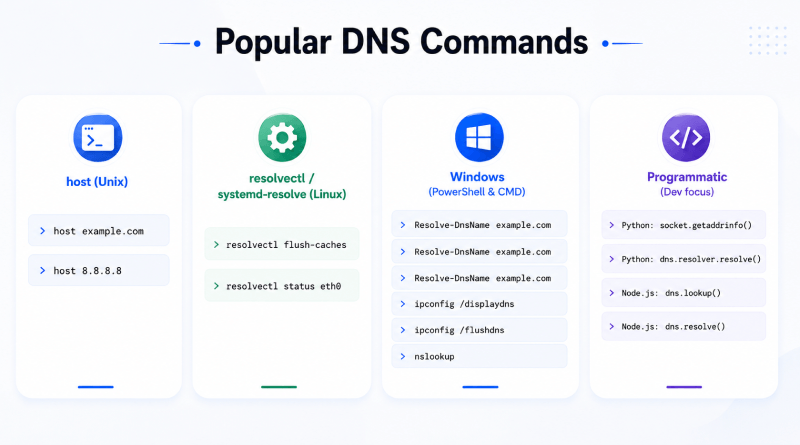
1. host—The Fundamental Command
The host command is a fundamental DNS lookup tool in the Unix toolkit. A basic DNS query, host example.com, returns the A, AAAA, and MX records in a single clean line each, with none of dig’s verbose output sections.
Reverse lookups are simple: host 8.8.8.8 gives the PTR record without any extra flags. When you pull every available record type at once, host-example.com runs ANY queries and generates a complete response. It is useful for a quick inventory of what’s called domain configuration.
The commands by host are executed faster, making it a better choice as compared to dig.It is also suitable if you are running multiple programs that involve the use of trace mode, inspection of DNSSEC signatures, or fine-grained query control.
2. resolvectl / systemd-resolve Linux command
On a modern Linux system, resolvectl queries through systemd-resolved. It reflects exactly what your system observes, including VPN or split DNS overrides. Use ““” for lookups, ““” for specific record types, and ““” to check which DNS servers are active per interface.
For cache management, resolvectl flush-caches clears the system DNS cache after a record change, with no waiting for TTL expiry. On multi-interface machines, `resolvectl status eth0` scopes output to a single interface. On older systems where resolvectl isn’t available, the same commands run under systemd-resolve—with a double-dash prefix.
3. Windows DNS Commands Windows
PowerShell’s Resolve-DnsName example.com is the updated Windows equivalent of dig, retrieving A, AAAA, and default CNAME records. To query specific types, add the Type-Flag-Resolve-DnsName example.com -Type MX, and to use a custom resolver, append Server 8.8.8.8. Use ipconfig /displaydns to list all caches of your system and ipconfig /flushdns to clear them.
Windows command includes nslookup, but it performs slightly differently from its Linux counterpart; the default server shown on startup is the system resolver, not a root server, and interactive mode is entered simply by running nslookup. For daily Windows lookups, Resolve-DnsName is the cleaner choice; nslookup remains useful for quick non-PowerShell contexts like CMD or remote sessions.
4. Programmatic DNS Resolution Dev
In Python, the built-in socket. getaddrinfo() handles forward lookups seamlessly, but for full record types—MX, TXT, and CNAME—the standard choice is the dnspython library. The dns.resolver.resolve returns the structured response you can parse within code.
In Node.js, the distinction worth knowing is that dns.lookup() uses the OS resolver (respects /etc/hosts and system config), while dns.resolve() goes straight to the network; the same difference matters in Docker containers and VPN environments where DNS is overridden.
Reach for code over CLI when DNS lookups are part of an automated workflow. CLI tools are faster for one-off investigation, whereas program libraries support error handling.
Practical Debugging Scenarios Hands-on
DNS issues rarely announce themselves clearly; a bounced email, a domain loading on one network but not another, or a record change that seems stuck all trace back to something queryable. For email delivery problems, the lookup chain starts with the MX record and works outward:
Verify the MX with dig MX example.com, then check SPF with dig TXT example.com, DKIM with dig TXT selector._domainkey.example.com, and DMARC with dig TXT _dmarc.example.com.
If any of the returns are NXDOMAIN or an unexpected value, you have found the break. For propagation checks after a DNS change, query the same record against multiple resolvers directly and compare:
dig example.com @ 8.8.8.8

dig example.com @1.1.1.1.

dig example.com @ 9.9.9.9.
Variations in responses from different resolvers are merely a result of propagation — the TTL of the previous record is still respected by some caches.
By contrasting your local resolver’s output with a trusted public alternative, you can quickly detect DNS hijacking or misconfigurations through mismatched IP addresses and unexpected routing paths. If resolvectl query example.com returns a different IP address than dig A example.com @1.1.1.1, it means your system resolver is returning a manipulated or stale response. One of the quickest checks for misconfiguration is to use `dig` to trace the full delegation path from the root servers to the authoritative answer, checking for unexpected nameservers or misconfiguration in the path.
If you need to compare two resolvers side-by-side for one shot:
for resolver in 8.8.8.8 1.1.1.1 208.67.222.222 $(resolvectl status | grep "DNS Servers" | awk '{print $3}'); do

echo "--- $resolver ---"

dig example.com @$resolver +short.

done
Side-By-Side Comparison: dig vs host vs nslookup vs resolvectl Linux Commands
| Feature / Metric | dig | host | nslookup | resolvectl |
|---|---|---|---|---|
| Primary Use Case | Detailed DNS debugging, deep record analysis, scripting. | Quick, human-readable DNS lookups. | Basic legacy lookups, interactive troubleshooting shell. | Checking local network status, mDNS/LLMNR, and OS-level resolution. |
| How it Resolves | Directly queries the DNS server (bypasses OS files like /etc/hosts). |
Directly queries the DNS server (bypasses OS files like /etc/hosts). |
Directly queries the DNS server (bypasses OS files like /etc/hosts). |
Queries systemd-resolved cache/API (honors local configs like /etc/hosts and VPN split DNS). |
| Output Styling | Verbose, matches actual raw DNS zone file format. | Clean, concise, summarized natural language sentences. | Moderately verbose with Authoritative and Non-authoritative sections. | Organized by network interface with DNSSEC status details. |
| Interactive Mode | No | No | Yes (persistent shell mode) | No |
| Availability | Linux, macOS (bind-utils / dnsutils). |
Linux, macOS (bind-utils / dnsutils). |
Built-in on Windows, Linux, and macOS. | Modern Linux distributions using systemd. |
| Scripting Friendly | Excellent Supports +short and automation workflows. |
Moderate Requires regex or string parsing. | Poor Output formatting varies across operating systems. | Good Provides structured query sub-commands. |
Quick Reference Cheat Sheet
Bookmark the cheat sheet that underscores syntax of every tool covered in this guide:
dig:
dig A example.com                   # basic A record lookup

dig A example.com @8.8.8.8          # query a specific resolver

dig +short example.com              # clean one-line output

dig +trace example.com              # full resolution path from root

dig -x 8.8.8.8                      # reverse lookup

dig +dnssec example.com # check DNSSEC validationnslookup:
nslookup example.com                # basic lookup using system resolver

nslookup example.com 8.8.8.8        # query a specific resolver

nslookup -type=MX example.com       # query specific record type

nslookup -type=TXT example.com # fetch TXT records (SPF, DKIM)host:
host example.com                    # forward lookup (A, AAAA, MX)

host -t MX example.com              # query specific record type

host -a example.com                 # all record types (ANY query)

host 8.8.8.8 # reverse lookupresolvectl:
resolvectl query example.com                  # basic lookup via system resolver

resolvectl query --type=MX example.com        # query specific record type

resolvectl status                             # active DNS servers per interface

resolvectl flush-caches                       # clear system DNS cache
The Bottom Line
DNS issues are easy to fix if you are aware of the right commands. The dig command provides the most detailed DNS analysis, offering features such as trace mode and DNSSEC validation, while nslookup is readily available and easy to use without additional setup. The host generates clean output when a quick response is needed, and resolvectl is paired with Linux systems for accurate answers. On Windows, the Resolve-DnsName command covers most of what dig does natively in PowerShell.
The real skill is not memorizing flags, but knowing the sequence of DNS resolve commands. Start with the basic lookup, compare across resolvers if the results look off, run +trace when the chain breaks, and flush caches before assuming propagation is the problem. Because tools are only as smart as the logic behind them.
FAQs
1. How do you resolve DNS?
DNS resolution occurs when your device queries a recursive resolver, which searches the DNS hierarchy (Root, TLD, and Authoritative nameservers) to find the correct IP address. Once located, the IP is sent back to your device and cached for future use.
2. What is DNS used to resolve?
DNS is primarily used to resolve human-readable domain names (like example.com) into machine-readable IP addresses (like 192.0.2.1). This system ensures users can easily navigate the internet without memorizing complex numerical networking codes.
3. How do I check DNS resolve?
You can check DNS resolution by using command-line tools like nslookup or dig followed by the domain name (e.g., nslookup google.com). Alternatively, free online web tools like DNSChecker or MXToolbox allow you to verify global resolution instantly.
4. How to DNS resolve an IP address?
To resolve an IP address back into a domain name, you perform a Reverse DNS (rDNS) lookup using a pointer (PTR) record. This is executed in the command line by running nslookup or dig -x followed by the specific IP address.