

 Grace Cornish
Imagine typing a website address into your browser, expecting the page to load instantly, only to encounter the message, “This site can’t be reached.” In many cases, the website itself is functioning perfectly—the real reason for this is the DNS.
Let’s decode this.
The Domain Name System (DNS) is similar to an Internet phone book. It provides the user with an easy-to-remember domain name, which is converted into an IP address that computers use to communicate with one another. When DNS is not operating properly, website pages load incorrectly, e-mail doesn’t reach the recipient, and servers fail to create connections to one another on a network.
Fortunately, Windows provides many built-in command-line tools that help diagnose and repair DNS-related issues in minutes. Although the GUI allows basic configuration, Command Prompt and PowerShell provide more detailed information.
In this detailed blog, we will walk through the most commonly used DNS commands for Windows, including DNS configuration settings, testing domain name resolution, viewing and clearing your DNS cache, verifying DNS records, and troubleshooting common connectivity and troubleshooting the common connectivity issues.
Regardless of whether you own a website, are a system administrator, or are a developer, these commands will assist you in diagnosing your DNS problems so that you can keep your Internet-based services running effectively.
Table Of Content
What are Windows DNS commands?
Windows DNS commands are command-line utilities that allow the user to examine, test, repair, and troubleshoot their DNS configuration. These commands can be used directly rather than surfing multiple pages or tabs to quickly diagnose DNS issues.
Windows includes two main command-line environments for DNS troubleshooting: Command Prompt (CMD) and PowerShell.
💻 Command Prompt (CMD)
CMD has several classic networking tools (e.g., ipconfig, nslookup, and ping) that are commonly used for checking DNS settings and resolving connectivity problems.
⚡ PowerShell
In contrast, PowerShell has more advanced commands, such as Resolve-DnsName, that provide detailed record information, automation, and scripting capabilities.
📌 These specific DNS commands will help you resolve your issue:
When a certain domain name cannot be resolved and the internet is connected to that PC.
When a new domain name has been pointed to an existing domain, but it cannot be resolved correctly.
When checking whether or not a newly-created DNS record has propagated.
When email service stops working because of the incorrect configuration of an MX or TXT record.
When connecting a VPS/dedicated server to the domain or an external service.
Whether you’re troubleshooting a computer, website, or server, Windows DNS command-line tools help diagnose and resolve DNS issues quickly and efficiently.
Why is CMD run as administrator for DNS commands?
Some DNS commands require the user to have elevated permissions to alter the network configuration, delete the DNS cache, or reset components. To prevent any permission errors, it is strongly recommended that you open a Command Prompt with Administrator privileges before attempting to resolve any DNS issues.
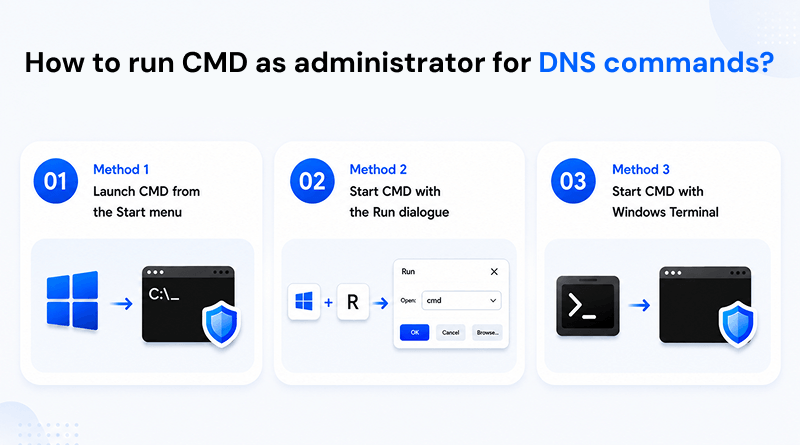
Method 1: Launch CMD from the Start menu
- Click the Start button (or press the Windows key)
- Type “cmd” or “command prompt” in the search box
- Right-click on the command prompt and choose “run as administrator”
- Click “yes” when the User Account Control (UAC) prompt displays.
Method 2: Start CMD with the Run dialogue
- Press Windows + R to open the Run dialogue box.
- Type “cmd”
- Rather than pressing ‘enter’, hold down the CTRL and SHIFT keys together, then press ‘enter’
- Approve the User Account Control (UAC) message to start CMD as an administrator.
Method 3: Start CMD with Windows Terminal
- Right-click the Start button (or press Windows + X).
- Select “windows terminal (Admin)”
- Click “yes” when prompted.
- If the Windows terminal opens with PowerShell as the default type, open a CMD tab.
Once you have CMD opened with administrator access, you can perform DNS troubleshooting and repair without encountering any access issues.
What is the DNS troubleshooting workflow for Windows?
In situations where websites, email services, or domain resolution stop functioning correctly, users frequently change DNS settings without first diagnosing the root cause of the problem. Instead of that, a better way to work through these potential problems is to implement a structured process of identifying and then troubleshooting.
By following the process below in order, you’ll be able to determine where your DNS problem lies and apply the appropriate solution without any guesswork.
🔍 DNS Troubleshooting Workflow
1
Network configuration verification step
Check the current network configuration of your device. Some specific elements include: The IP address, DNS servers, the gateway, and your network adapters.
2
DNS server verification step
Verify that the DNS servers being utilized by your device are accurate and correspond with the configuration on your device’s network. If they do not, then you experience problems when attempting to access any domains on the Internet.
3
Domain name resolution testing
Test whether a domain name resolves to a server IP address. This will help to determine if the reason you are unable to connect to a domain is due to issues with DNS resolution or some other network issue.
4
Clear local cache for DNS
Clear the local DNS cache entries on your computer for previous configurations. This can be useful following an update made to your DNS configuration, website migration, or change of servers.
5
Renew DNS registration
Force Windows to notify DNS servers about your device and for Windows to refresh the current DNS information on your system. This is a useful step on business networks, Active Directory environments, and other types of server infrastructure.
6
Reset network stack
When DNS continues to be an issue after completing the above steps, reset the Winsock settings and other related network parameters to fix any corruption that might be causing connectivity problems.
7
Re-check the domain resolution
Test the DNS lookup for every domain causing an issue to re-test after the issue is fixed.
Using this process means that you’ll be able to diagnose DNS problems based on a methodical approach. The commands outlined in the following sections align each step within the troubleshooting workflow, thus making it simpler for you to identify and resolve Windows DNS-related issues.
Which are the essential DNS commands for Windows?
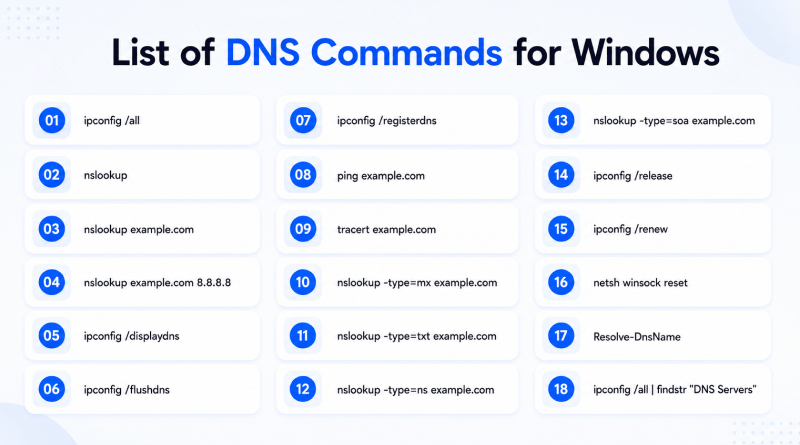
1. ipconfig /all
When troubleshooting Windows DNS-related issues, the first thing you need to do is run the ipconfig /all command. This gives you a comprehensive summary of your computer’s existing network configuration, including your computer’s current DNS servers for resolving domain names.
By reviewing this data, you’ll be able to quickly determine if your computer is connected to the right network and whether it is obtaining valid DNS settings through either DHCP or static configuration.
| Category | Information |
|---|---|
| Purpose | View complete network and DNS configuration for all active network adapters on Windows |
| Command | ipconfig /all |
| DNS Servers | Currently assigned DNS server IPs (e.g., 8.8.8.8, 8.8.4.4) |
| IPv4 / IPv6 Address | System’s assigned IP addresses |
| Default Gateway | Router or network exit point |
| DHCP Status | Shows whether IP is automatically assigned (Yes/No) |
| Hostname | Computer name on the network (e.g., DESKTOP-ABC123) |
| Subnet Mask | Defines network size and range |
| MAC Address | Physical hardware address of network adapter |
| DHCP Server | Server responsible for assigning IP configuration |
| How to Read It | Check DNS servers for correctness; verify IP and gateway for valid connectivity; incorrect values may indicate DNS or network issues. |
| When to Use |
• Check DNS servers in use • Verify DHCP settings • Troubleshoot website/domain issues • Confirm settings after DNS changes • Gather network info for debugging |
This DNS command filters the results and displays only DNS-related entries, making it easier to identify the DNS servers currently assigned to your system.
2. nslookup
One of the best utilities for troubleshooting DNS and verifying domain names is nslookup. It’s used to find out if a domain name is resolving correctly by sending a DNS query to the configured DNS server and returning the response to you. In simple language, it verifies whether the domain is resolving to the correct IP address.
Because nslookup communicates with DNS servers directly, it is the primary tool for diagnosing domain resolution issues, testing/confirming DNS changes, and determining whether the propagation status of DNS records is successful.
| Category | Information |
|---|---|
| Purpose | Check how a domain name resolves through DNS and identify the IP address associated with it. |
| Command | nslookup example.com |
| DNS Server Info | Shows which DNS server is handling the query (e.g., dns.google). |
| DNS Server IP | IP address of the DNS resolver (e.g., 8.8.8.8). |
| Resolved Domain IP | IP address returned for the domain (e.g., 93.184.216.34). |
| Response Details | Includes DNS query status such as “Non-authoritative answer”. |
| How to Read It | Check if the DNS server is expected and verify that the returned IP matches the correct hosting server; errors or wrong IPs indicate DNS issues. |
| When to Use It |
• Troubleshoot website not loading • Verify domain points correctly • Check DNS propagation after changes • Confirm DNS updates are active • Diagnose server/domain resolution issues |
You can also use nslookup to check on public domains or to check on one or more DNS records of your website. If the returned IP address from nslookup does not match the IP address assigned to your website’s hosting server, either the DNS records are still being propagated, or there is a problem with how the DNS records were configured.
3. nslookup with a Specific DNS Server
In some cases, the issue is with the DNS server resolving the domain, not the domain itself. Thus, the standard nslookup command will only show you what’s happening on the specific DNS server. In order to get the real issue diagnosed, it must be checked against other DNS servers.
If you want to check whether different DNS providers can resolve a specific domain, you should test it using public DNS servers. This helps confirm whether the issue is only with your local DNS server.
| Category | Information |
|---|---|
| Purpose | Query a domain using a specific DNS server instead of the system’s default DNS. |
| Command | nslookup example.com 8.8.8.8 |
| DNS Server Info | Shows the DNS server being queried (e.g., Google DNS). |
| DNS Server IP | IP address of the selected DNS resolver (e.g., 8.8.8.8). |
| Resolved Domain IP | IP address returned for the domain (e.g., 93.184.216.34). |
| Response Details | Includes DNS status such as “Non-authoritative answer”. |
| How to Read It | If public DNS works but default DNS fails, the issue is likely ISP DNS or local configuration; different results across DNS providers may indicate propagation delay. |
| Common DNS Servers for Testing |
Google DNS: 8.8.8.8 Google Secondary: 8.8.4.4 Cloudflare: 1.1.1.1 Cloudflare Secondary: 1.0.0.1 OpenDNS: 208.67.222.222 OpenDNS Secondary: 208.67.220.220 |
| When to Use It |
• Compare ISP vs public DNS results • Check DNS propagation • Identify local vs global DNS issues • Troubleshoot domain resolution differences • Verify server migration updates |
When troubleshooting DNS issues, test the domain at least two different times on multiple locations using different public DNS servers.
4. ipconfig /displaydns
Whenever you access a website, Windows saves local results from DNS lookups in a temporary cache. This way, the next time you visit a website, you can connect faster (skipping the permission required for the DNS server for the same IP address). You can review the DNS cache to see how Windows is resolving domain names by using the command ipconfig /displaydns.
This command is particularly useful when troubleshooting DNS-related issues caused by outdated or incorrectly cached entries.
| Category | Information |
|---|---|
| Purpose | Display the contents of the local DNS resolver cache stored on Windows. |
| Command | ipconfig /displaydns |
| Cached Data Shown | Stored DNS entries for previously visited domains. |
| Record Types | A, AAAA, CNAME, and other DNS record types. |
| TTL (Time To Live) | Time remaining before the cache entry expires. |
| Data Length | Size of the DNS record data. |
| Resolved IP Address | IP address linked to the cached domain. |
| Previously Resolved Hosts | List of domains recently accessed on the system. |
| How to Read It | Check domain name, TTL, and IP address; outdated or incorrect IPs indicate stale cache that may affect website access. |
| When to Use It |
• Investigate stale DNS entries • Check cached domain resolution • Troubleshoot website loading issues after DNS changes • Verify local DNS behavior • Analyze how Windows resolved a domain earlier |
The ipconfig /displaydns command filters the normal output list of DNS caches. Therefore, only results for a specified domain are displayed. This functionality makes troubleshooting much easier.
5. ipconfig /flushdns
If any of the DNS cache entries stored in memory are outdated or incorrect, your computer continues to connect to the wrong server (even after updated DNS records). The command ipconfig /flushdns removes all DNS cache records from the local system, and hence, the next time you attempt to connect to a website, Windows obtains new DNS records from the configured DNS servers.
Because of this, ipconfig /flushdns is one of the most frequently used commands for troubleshooting DNS and is one of the first recommended fixes when a website does not load correctly after making DNS changes.
| Category | Information |
|---|---|
| Purpose | Clear the local DNS resolver cache and remove all stored DNS records. |
| Command | ipconfig /flushdns |
| Example Output | Successfully flushed the DNS Resolver Cache. |
| What Happens When Run |
• Deletes all cached DNS records • Removes outdated domain-to-IP mappings • Forces fresh DNS lookups • Ensures latest DNS information is fetched from authoritative servers |
| Important Note | Does not change DNS settings or server-side DNS records; only clears local cache. |
| When to Use It |
• After DNS record updates • When a website moves to a new server • If old IP addresses still appear • When a domain resolves incorrectly • During DNS-related troubleshooting |
| How to Verify | Use nslookup example.com or ping example.com to confirm updated DNS resolution. |
Clearing the DNS cache is one of the fastest methods to resolve access problems after DNS changes. However, if the website continues to resolve to an incorrect IP address even after the DNS cache has been cleared, it suggests that the changes are still propagating or the records themselves are incorrectly configured.
6. ipconfig /registerdns
The command to flush DNS cache clears stored DNS entries on your system; ipconfig /registerdns does the opposite and asks Microsoft to update and record your system’s DNS entries at the configured DNS server. By running this command, you are assuring that the DNS database contains the most up-to-date information for the DNS name associated with the server’s IP address.
This command is most helpful with devices in business networks, Windows Server environments, and Active Directory, where devices regularly register with the DNS server because of dynamic DNS registration.
| Category | Information |
|---|---|
| Purpose | Force Windows to register or update its DNS records with the configured DNS server. |
| Command | ipconfig /registerdns |
| Example Output | Registration of DNS resource records has been initiated; errors (if any) are logged in Event Viewer. |
| What Happens When Run |
• Refreshes DNS registration for network adapters • Updates hostname-to-IP mappings • Sends updated info to DNS server • Creates/updates dynamic DNS records |
| Key Difference | Unlike ipconfig /flushdns (clears local cache), this command updates DNS records on the DNS server itself. |
| When to Use It |
• Hostname not resolving correctly • IP address changes not reflected in DNS • After joining a domain • Active Directory DNS issues • Dynamic DNS not updating properly |
| How to Verify | Use nslookup hostname to confirm the updated IP matches the current system address. |
If you run this command and your DNS entry does not immediately show an updated record, wait a few minutes for the DNS server to process the registration request. You can also check for errors in the Windows Event Viewer.
7. Ping Domain Name
While ping is commonly known as a tool for testing network connections, it is also useful for troubleshooting DNS issues. When Windows tries to send packets to a node on the Internet, it has to first resolve the respective node’s domain name to its corresponding IP address. Thus, this command verifies if DNS resolution is working properly.
Additionally, unlike nslookup, which only provides a way of resolving DNS queries, ping provides information on whether the destination (the IP address returned with DNS resolution) is reachable on the network.
| Category | Information |
|---|---|
| Purpose | Verify domain resolution to an IP address and test basic network connectivity. |
| Command | ping example.com |
| Example Output |
Pinging example.com [93.184.216.34] with 32 bytes of data… Reply from 93.184.216.34: time=15ms TTL=56 |
| What It Shows |
• Resolved IP address of domain • Connectivity status • Response time (latency) • Packet loss information • Network reachability |
| How to Read It |
• IP in brackets confirms DNS resolution • Replies confirm connectivity • No reply or error indicates possible issue |
| DNS vs Network Diagnosis |
• No host found → DNS issue • Resolved but no reply → Network/firewall/server issue • Replies received → DNS + network working fine |
| Common Errors | “Ping request could not find host” → DNS failure |
| When to Use It |
• Check domain resolution • Test server connectivity • Identify DNS vs network issues • Troubleshoot VPS/dedicated servers • Quick health check before advanced debugging |
To keep their network safe, many websites or servers purposely deny pinging (ICMP) requests. Thus, ping is used to test connectivity. If DNS resolves successfully but ping requests time out, the server may still be working, but it can appear as if there is no connection.
8. tracert Domain Name
To perform a more complete test run, use ‘nslookup’ and then run ‘tracert’. This determines the type of connection issue. When you receive an “A” record for your domain but your website/server has no connectivity from your computer, there may be routing problems between the paths (from your computer to the destination). Within the same line, run ‘tracert’ to exactly pinpoint where the network broke.
As mentioned above, tracert shows the router paths that data packets travel to get to the next router. With the tracert command, it is now possible to pinpoint where communication issues occurred due to routing errors or delays at points along the path the data travelled.
| Category | Information |
|---|---|
| Purpose | Trace the network path to a domain or IP address and identify connectivity issues between system and destination. |
| Command | tracert example.com |
| Example Output |
Tracing route to example.com [93.184.216.34] 1 <1 ms 192.168.1.1 2 10 ms isp-router.net 3 18 ms transit-provider.net 4 25 ms example.com |
| What It Shows |
• Each hop (router) between source and destination • Response time per hop • Full network routing path • Points of delay or failure |
| How to Read It | Each line represents a router along the path. Successful completion means the network route is working. Timeouts (* * *) indicate possible routing, firewall, or ISP issues. |
| Common Issues |
• Request timed out → routing/firewall/ISP issue • High latency at a hop → network congestion • No completion → broken route or blocked traffic |
| When to Use It |
• Verify connectivity after DNS resolution • Diagnose slow websites or servers • Identify ISP or routing issues • Detect network bottlenecks • Troubleshoot unreachable websites |
Always run tracert after getting a successful DNS resolution. If you are unable to get a successful DNS resolution, you must first address the issues with the DNS.
What are advanced DNS record lookup commands?
Typical DNS troubleshooting only considers whether or not there is an “A” record resolution of the domain. But it’s important to note that besides “A” records, DNS contains other types of records, such as MX, SOA, NS, etc., that provide ways to check the email routing, the actual ownership of the domain name, where the nameservers are located, and if the zones contain all of the information needed to run their DNS server.
Querying certain record types through nslookup allows you to troubleshoot issues with email delivery, verify DNS migrations, and validate domain configurations. As these commands allow you to perform advanced lookups, they are helpful tools for website owners, server administrators, and IT professionals managing their domains and hosting environments.
1. Check MX records
The Mail Exchange (MX) records identify the mail servers responsible for accepting emails sent to an address associated with a particular domain. When troubleshooting email reach issues, checking the MX records for the specific domain is the first step.
Email (MX Record) Lookup
📧 MX Record Lookup
nslookup -type=mx example.com
Purpose
Check mail exchange (MX) records of a domain.
Example Output
example.com MX preference = 10, mail exchanger = mail.example.com
What It Shows
- Mail servers configured for the domain
- Priority (preference) values
- Email routing destination
How to Read It
Lower preference number = higher priority mail server; ensures correct email delivery routing.
When to Use It
- Email troubleshooting
- Mail server verification
- Email migration checks
- Confirming email delivery setup
2. Check TXT records
TXT records provide temporary or permanent text-based information related to DNS. It also serves other types of information and formats used for administrative purposes and verification of the domain owner or provider’s identity, which is stored with a TXT record.
TXT Record Lookup
📝 TXT Record Lookup
nslookup -type=txt example.com
Purpose
Retrieve TXT records for a domain.
Example Output
example.com text = “v=spf1 include:_spf.google.com ~all”
What It Shows
- SPF records
- DKIM-related entries
- Domain verification tokens
- Other TXT-based configurations
How to Read It
TXT records contain authentication and verification data used for email security and domain validation.
When to Use It
- SPF verification
- DKIM troubleshooting
- Domain ownership verification
- Third-party service setup (Google, Microsoft, etc.)
3. Check NS records
The Nameserver (NS) records identify which DNS servers are responsible for managing the DNS zone for a domain.
Nameserver (NS) Lookup
🌐 NS Record Lookup
nslookup -type=ns example.com
Purpose
Retrieve authoritative nameservers for a domain.
Example Output
example.com nameserver = ns1.examplehost.com
example.com nameserver = ns2.examplehost.com
example.com nameserver = ns2.examplehost.com
What It Shows
- Authoritative nameservers for the domain
- DNS hosting provider information
- Domain delegation details
How to Read It
These nameservers indicate where the domain’s DNS records are managed; they define the DNS authority for the domain.
When to Use It
- Nameserver verification
- DNS migration checks
- Domain transfer validation
- Troubleshooting DNS delegation issues
4. Check SOA records
The Start of Authority (SOA) records contain the administrative information related to the primary authoritative nameserver for the DNS zone. It comprises major details required for zone administration.
SOA Record Lookup
📜 SOA Record Lookup
nslookup -type=soa example.com
Purpose
Retrieve Start of Authority (SOA) record for a domain.
Example Output
Primary name server = ns1.examplehost.com
Responsible mail addr = admin.example.com
Serial = 2026061101
Responsible mail addr = admin.example.com
Serial = 2026061101
What It Shows
- Primary authoritative nameserver
- DNS zone serial number
- Administrator contact (email format)
- Zone refresh and update details
How to Read It
The SOA record defines the main DNS authority for a domain; the serial number increases whenever DNS changes are made.
When to Use It
- DNS administration
- Zone file troubleshooting
- DNS replication checks
- Propagation issue diagnosis
How to reset DNS using CMD?
Using the command prompt to reset your DNS resolves multiple Internet issues like slow browsing, failed websites, and failed DNS queries. Each command is used to clear or refresh the various parts of your network configuration.
Below are the steps:
1
Flush DNS Cache
ipconfig /flushdns
Clears stored DNS cache from your system. Removes outdated or corrupted website IP entries so Windows fetches fresh DNS data on next request.
2
Release IP Address
ipconfig /release
Releases the current IP address assigned by router/ISP. Temporarily disconnects network configuration to prepare for a new IP assignment.
3
Renew IP Address
ipconfig /renew
Requests a new IP address from the DHCP server (router/ISP). Re-establishes network connectivity with updated settings.
4
Reset Winsock Catalog
netsh winsock reset
Resets Windows network socket settings. Fixes corrupted network configurations that may block internet or application connectivity.
5
Restart System
(No command)
Restarts Windows to fully apply network changes. Ensures all resets and updates take effect properly.
What are common DNS errors and the commands to fix them?
There are different ways that a DNS issue appears. Some cause a webpage loading failure or redirect to the wrong page, while others may prevent emails from loading. Below are some of the most common DNS problems and the CMD commands used to find or repair them.
| DNS Problem | Command |
|---|---|
| Old website IP showing | ipconfig /flushdns |
| Domain not resolving | nslookup |
| Wrong DNS server configured | ipconfig /all |
| Email records missing | nslookup -type=mx |
| Corrupted network stack | netsh winsock reset |
| DNS cache issues | ipconfig /displaydns |
1. Old website IP showing
When your system holds onto an outdated cache of DNS, you may receive the old IP address of a web page even though the page has already moved to a new server.
Resolution Command:
ipconfig /flushdns
The command “ipconfig /flushdns” will clear out that DNS cache and force the computer to download the new IP address from the DNS server.
2. Domain not resolving
If you can’t open a domain name, it indicates that there was a failure when attempting to resolve the domain name into an IP address.
Resolution Command:
nslookup
The nslookup command determines whether the proper IP address is being resolved from the domain name and whether the DNS server is properly responding to your request.
3. DNS server configuration errors
If you’re experiencing slow website connections or computer browsing issues, there could be a configuration problem with your DNS server settings.
Resolution Command:
ipconfig /all
The ipconfig /all command shows you the complete networking configuration settings of your computer. In addition to that, it showcases details about the currently used DNS servers. You can then use that information to identify potential DNS configuration problems.
4. Missing email records
If you’re having trouble receiving emails, there may be an issue with the MX (Mail Exchange) records for the email accounts.
Resolution Command:
nslookup -type=mx
The above command will allow you to query the mail servers for a domain to verify that the email is correctly routed.
5. Network stack damage
If you are losing your internet connection or apps are failing to connect to the internet, it indicates that Winsock settings may be corrupt.
Resolution Command:
netsh winsock reset
Resetting Winsock restores your default network socket configurations and fixes deep-rooted problems caused by internet connection failures.
6. Issues with DNS Cache
The command below lists all DNS cache entries held in your local computer’s DNS cache.
Resolution Command:
ipconfig /displaydns
You can see which DNS records are currently being referenced on your local computer before you make the decision to flush your DNS cache.
What are the best practices when using DNS commands?
Using proper DNS troubleshooting procedures with the Command Prompt obtains accurate results and prevents unnecessary network problems.
✓ DNS Troubleshooting Best Practices
Run CMD with Administrator Privileges
When working with certain DNS commands (e.g., the reset command), it is necessary to have administrator privileges before executing the command. Running Command Prompt with administrator privileges guarantees successful command execution without any permission errors.
Use Multiple DNS Servers for Verification
Avoid making conclusions about the problem based on a single source. Test the same domain from different locations using different DNS servers (e.g., Google DNS, Cloudflare DNS) to quickly determine if the problem exists at your ISP level or at the domain level.
Clear Cache After Any Update/Change
Always clear your system DNS cache using ipconfig /flushdns after updating or changing your DNS records or servers. This forces your system to avoid using old entries and update itself with the current configuration information.
Use Resolve-DnsName for Advanced Analysis
Use Resolve-DnsName in Windows PowerShell to get a more complete and up-to-date reading of DNS records.
Check DNS Propagation Before Troubleshooting
DNS changes take time to propagate. Before working out the issue, verify the full URL from all over the world to see if the change has propagated completely before troubleshooting the issue further.
Strategic Outlook
To troubleshoot DNS effectively, follow an organized process rather than just blundering through command-line commands.
Your starting point should always be the diagnosis of the problem: are you experiencing issues connecting to one particular site, several sites, or all sites? Is one service, such as email, working while others don’t? Once diagnosed, you can then verify that your machines have been configured correctly from a DNS perspective and that the appropriate DNS servers are specified.
Next, flush your DNS cache to remove stale or damaged entries inhibiting proper DNS routing and, if problems persist, backlog procedures by performing a network stack reset to resolve systemic network configuration problems.
Finally, each time you make a change during your troubleshooting process, it’s essential to retest connectivity and determine if the problem has been resolved or any additional work is required.
By following these steps: Diagnose → Verify → Flush → Reset → Re-test: You’ll have an established, logical path to effectively correct the majority of DNS-related problems.
FAQs
1. Why does Microsoft recommend Resolve-DnsName over nslookup for Windows troubleshooting?
Resolve-DnsName is a newer PowerShell-based tool with enhanced DNS output. It includes advanced details (such as the record type and its TTL) along with comprehensive error details compared to nslookup. Thus, it’s mostly recommended and primarily a straightforward utility for performing simple lookups and only provides legacy functionality.
2. How do I view my current DNS server IPs using CMD without scrolling through ipconfig /all?
You can use the following command, ipconfig /all | findstr “DNS Servers,” to filter and display the DNS server IPs without having to scroll through the entire ipconfig /all output. This saves time and effort searching through the complete network configuration results.
3. What should I do if ipconfig /flushdns fails with a “Could not flush the DNS Resolver Cache” error?
This issue typically occurs on systems where either the DNS client service has been stopped or disabled. To rectify it, you have to either restart the DNS client service or run CMD as an administrator to attempt flushing the DNS cache again. Sometimes, simply rebooting the machine also resolves this issue, allowing the DNS cache to be flushed as intended.
4. What is the difference between ipconfig /flushdns and ipconfig /registerdns?
The command ‘ipconfig /flushdns’ clears the local DNS cache from your computer, removing any old and incorrect entries. The command ‘ipconfig /registerdns’ renews the local DNS entries from your computer to the DNS server and updates the host name registry and IP address registry in the network resources.