
 Jackson Lane
Web designing has evolved, and so have your go-to designing resources. We know you have come across this because you are searching for the right web designing tool. Figma and Photoshop paves the way for you to follow UI UX trends. They are two contenders for which insights are presented in the blog. Both software excel in interface editing and vector image editing.
Installing both software on one system has become a mandatory requirement for UI/UX designers. Diving deeper into both pieces of software will actually give clarity about their usage. If you think that both designing software tools are mandatory to use simultaneously, this blog is an eye-opener.
Table Of Content
What is Figma?
Figma is a cloud-based UI/UX prototyping tool with a user-friendly interface used for creating websites, mobile apps, and other web-based products. It is accessible on web browsers and mobile apps (preview only). This designing tool is compatible with Windows, Mac, and Linux operating systems.
Timeline
- 2012: Founded by Dylan Field and Evan Wallace.
- 2015: A closed beta was released to the public.
- 2016: The official public launch occurred.
Well, what makes Figma so different from Photoshop, for that matter, is the idea of collaboration that Figma is based on. It’s the place where you can seamlessly work together and deliver faster results.
Figma offers plugins, design systems, and UI kits for designers creating innovative projects regardless of their knowledge and expertise. So, if you are just starting your design career, Figma can be the place where you can develop and feel safe to learn.
What is Photoshop?
An Adobe product, Photoshop was launched in the 1990s. However, it was created by a brother duo, Thomas and John Knoll. Here, designers create the illustrations and edit and control certain designs and other digital art.
This tool has created an enormous buzz in the image editing sector. The brand recall value is so strong that it defines the phrase ‘graphic design means Photoshop’. Users who want to work on animation and image editing rely on Adobe Photoshop. It is the go-to tool for photographers, illustrators, and graphic designers seeking special VFX. Filters, layers, and other designing tools can help you achieve the target.
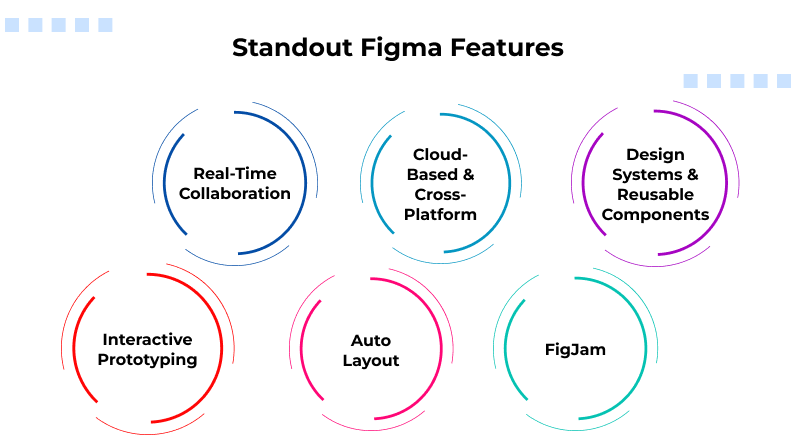
Standout Figma Features
1. Real-Time Collaboration
Multiple team members can collaborate together and work on the same file simultaneously. Real-time updates and leaving contextual comments on designing projects is easier. It streamlines team communication and eliminates version control issues.
2. Cloud-Based & Cross-Platform
Figma is accessible on Windows, Linux, and Mac because it is a browser-friendly tool. There is no need to install hefty software on the system, and designs are automatically saved and backed up in the cloud.
3. Design Systems & Reusable Components
Figma facilitates the design creation and its management through multiple libraries. You can use one design template multiple times, which reduces the human effort. It brings consistency across projects and allows for global updates to design elements through features like Variants.
4. Interactive Prototyping
Designers create clickable prototypes with more animations and transitions directly with Figma. It simulates the actual user experience without needing external tools or coding.
5. Auto Layout
Figma has the Auto Layout feature to create responsive designs by allowing elements to resize automatically based on the screen size and content. It saves significant time in creating adaptable layouts.
6. FigJam
FigJam by Figma is an online virtual whiteboard, allowing teams to brainstorm, plan projects, integrate, and access. FigJam can be integrated with tools like Asana, Jira, and GitHub.
Standout Photoshop Features
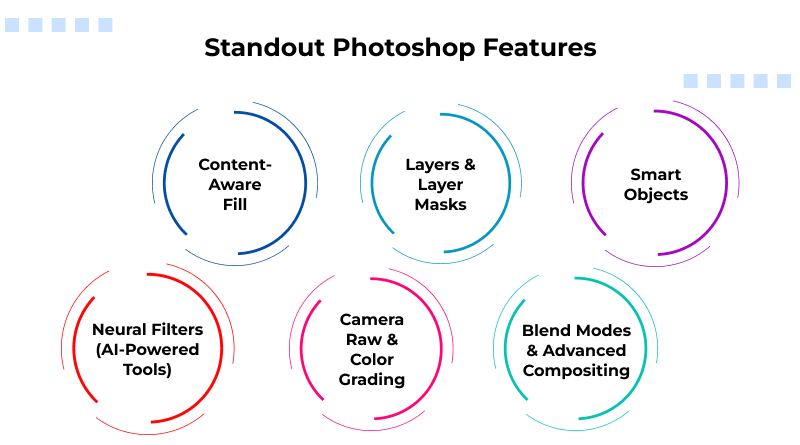
1. Content-Aware Fill
Content-Aware Fill is a smart Photoshop tool that removes unwanted objects from images instantly and fills the empty space with background elements. It analyzes the surrounding textures, lighting, and patterns to generate a seamless replacement. The tool eliminates the distractions, fixes compositions, and repairs old images without intense cloning.
2. Layers & Layer Masks
Editing complex images required more effort. But editing layer by layer sorts out the complex part. Without disturbing the original image, you edit, hide, and blend multiple elements. Combined with layer masks, you can reveal or conceal specific areas with precision, making nondestructive editing effortless. This gives creators full control over complex compositions, retouching, and advanced design workflows.
3. Smart Objects
Smart Objects allow you to scale, transform, warp, and apply filters without losing image quality. As Photoshop preserves the source content, you can edit and update images anytime. This resource is useful for designers working with logos, product mockups, and multi-layered projects where flexibility is crucial.
4. Neural Filters (AI-Powered Tools)
Neural Filters utilize Adobe’s AI, Sensei, to perform advanced edits in just a few clicks, such as modifying expressions, changing facial age, matching color, and even restoring blurry images. Neural filters help automate processes that previously took hours of manual retouching, providing a way to edit photos that is quicker, more precise, and easier for even novice editors.
5. Camera Raw & Color Grading
The Camera Raw module has powerful color grading and exposure tools to offer. Users get fine control over highlights, shadows, contrast, tone curves, and HSL adjustments. Whether you’re editing RAW photos or regular images, it helps create clean, cinematic, or stylized looks with professional color accuracy, ideal for photographers and digital artists.
6. Blend Modes & Advanced Compositing
Blend modes let you bring together layers in unique ways by governing the interaction of layers’ pixels, excellent for effects that involve lighting, textures, double exposures, and photo composites. Photoshop has a plethora of blending options like Multiply, Overlay, and Screen. These blending options all allow you to create beautiful artistic images that simply cannot be produced with simple and basic editing.
Figma vs. Photoshop: Similar Shortcuts
| Action | Figma (Windows) | Photoshop (Windows) | Figma (Mac) | Photoshop (Mac) |
| Move Tool | V | V | V | V |
| Text Tool | T | T | T | T |
| Rectangle Tool | R | U (cycle shapes) | R | U (cycle shapes) |
| Ellipse Tool | O | U (cycle shapes) | O | U (cycle shapes) |
| Pen Tool | P | P | P | P |
| Hand Tool | H or Spacebar (hold) | H or Spacebar (hold) | H or Spacebar (hold) | H or Spacebar (hold) |
| Eyedropper/Color Pick | I | I | I | I |
| Group Selection | Ctrl + G | Ctrl + G | Cmd + G | Cmd + G |
| Ungroup Selection | Shift + Ctrl + G | Shift + Ctrl + G | Shift + Cmd + G | Shift + Cmd + G |
| Duplicate | Ctrl + D or Alt + Drag | Ctrl + J (to new layer) | Cmd + D or Option + Drag | Cmd + J |
| Select All | Ctrl + A | Ctrl + A | Cmd + A | Cmd + A |
| Deselect | Esc | Ctrl + D | Esc | Cmd + D |
| Save | Ctrl + S (Saves to cloud) | Ctrl + S | Cmd + S | Cmd + S |
| Zoom In/Out | + / – | Ctrl + + / Ctrl + – | + / – | Cmd + + / Cmd + – |
| Actual Size (100%) | Shift + 0 | Ctrl + 0 | Shift + 0 | Cmd + 0 |
| Fit to Screen | Shift + 1 | Ctrl + 0 | Shift + 1 | Cmd + 0 |
| Toggle Rulers | Shift + R | Ctrl + R | Shift + R | Cmd + R |
| Free Transform | Enter (edit shape) | Ctrl + T | Enter (edit shape) | Cmd + T |
| Increase/Decrease Brush Size | N/A | ] / [ | N/A | ] / [ |
The Bottom Line
A modern designing team’s toolkit should include Figma and Photoshop. The UI/UX designing professional prefers Figma because of its prototyping and browser-based accessibility feature. Photoshop remains the unmatched application for complex graphic editing, photo manipulation, and detailed illustration, offering pixel-level control that Figma cannot replicate.
Choosing a single favorite is challenging because both offer unique propositions. The best tool depends on your hands-on expertise. We recommend learning both, as in IT sectors most of the in-house projects demand it.
FAQs
1. Which software is more cost-effective for a solo designer or small team?
Figma is also generally cheaper, that also offers a free option with a rich feature base and reduced charges on premium packages as compared to the individual model of Photoshop subscription.
2. Which is better for creating high-fidelity prototypes: Figma or Photoshop?
Figma is far better in terms of high-fidelity prototyping since it is purposefully designed to prototype UIs and UX, and it has built-in interactive features.
3. Which software is better suited for creating and maintaining design systems and components?
Figma is a better fit due to its fundamental functionality, which includes the use of Components (and Variants) and Team Libraries; these are created to support the development and operation of scalable design systems.
4. Which software should I use for creating social media graphics and print materials?
Photoshop is generally better when dealing with complicated social media illustrations, specifically when one needs advanced photo manipulation and print-based content, due to its overall superior raster image editing and color management levels.