
 Olivia Jones
Building a robust, efficient WordPress website with WordPress hosting is less about coding and more about the toolset at one’s disposal. Whether one’s goal is streamlining workflows, code debugging, or functionality enhancements, the best WordPress developer plugins make all the difference. They assist developers in refining performance while easing the tackling of challenges. It ranges from complex debugging tools to advanced performance enhancement tools for optimization. DIVE into our carefully curated list of must-have WordPress plugins for developers to find out how they transform your development process and make your WordPress projects flow better.
Table Of Content
An Introduction to WordPress Developer Plugins
Top WordPress developer plugins enable you to create websites easily and within that broad label, one finds a myriad of developer plugins doing different things:
- Information Access – Internal technical info such as database queries, debug logs, etc.
- Faster Testing – Such as quickly switching between accounts, seeing the template hierarchy for any page, running tests across browsers, etc.
- Functionality Enhancement – Allow administration of cron events right in your WP Admin.
- Custom Development – Adding some snippets of PHP code, custom fields, and custom CSS.
Basically, from increasing performance to streamlining workflows, different solutions that help in efficient WordPress website development are referred to as developer plugins.
How WP Developer Plugins Streamline Website Development?
The WordPress developer plugin helps in streamlining the development procedure. These tools aid developers in addressing mundane work, easing their workflows, and implementing advanced features easily so that projects can be completed efficiently.
– Managing Repetitive Tasks
Tasks such as debugging, taking backups, or database management consume extensive time. With the WP developer plugins, these repetitive jobs are automated for the ease of doing things and reducing errors. For instance, automated WordPress backup plugins or version control plugins save your changes without much supervision.
Related: Why Are Backups So Crucial For A WordPress Website Security?
– Optimizing Workflows
Efficient workflows are what power the development processes. Drag and drop builders are coupled with integrated code editors or real-time collaboration features to greatly simplify tasks otherwise very complex. It enables focusing on creating instead of consuming time on the latter.
– Implementing Advanced Features
Usually, the best WordPress plugins for developers have advanced features such as SEO optimization, performance monitoring, as well as API integration. These features create possibilities for many developers to extend the functionality of WordPress without having to delve into long periods of custom coding, thereby saving them the time and effort needed to achieve high-quality results.
In short, one of the excellent plugins required by any developer is the must-have WordPress plugin, which will absolutely act as a catalyst and streamline every process toward accomplishing much easier development.
Must-Have WordPress Plugins for Developers
Plugins are crucial for developers, as these tools improve and ease up their work. These plugins help take their projects to the next level. For a perfect plugin arsenal, the key essentials should be those that encapsulate the most critical needs that make complex tasks manageable.
Essential Features of Top-Of-The-Line WordPress Developer Plugins Include the Following:
- Speed-Optimizing: The plugins that boost website performance by speeding up loading and reducing resource usage are essential for creating fast and user-friendly websites.
- Debugging Tools: Assistance in identifying and fixing persistent issues with quick, smooth, and clean coding while developing.
- Security Enhancements: It is very necessary to protect websites from vulnerabilities. WP developer plugins that include malware scanning, firewalls, and routine updates protect the website as well as user data.
Thus, by using the best WordPress developer plugins, the developers focus on innovations while still efficiently delivering value without compromising on quality.
Related: Top WordPress Plugins for Blogs [Updated List]
WP Developer Plugins: Features, Pricing, Pros & Cons Comparison
| Plugin Name | Features | Price | Pros | Cons |
| Query Monitor | • Analyze database query execution time. • Track and log PHP errors, warnings, notices, etc. • Inspect Hooks, Actions, and Filters • Monitor REST API and HTTP requests. | Free | • Extremely detailed debugging insights • Lightweight and developer-focused • Works on both frontend and admin | • Not beginner-friendly • Too much data for non-technical users • Not recommended on production sites |
| Advanced Custom Fields (ACF) | • Create multiple custom fields • Manage field groups using the UI • Possesses a developer-friendly PHP API • Supports custom blocks and options pages, etc. | Free, and Paid versions (Pro) from $49/year | • Easy to use and well-documented • Highly flexible for developers • Widely supported by themes and plugins | • Advanced features require Pro version • Can add complexity to content management • Performance depends on implementation |
| WP Reset | • Full website reset/partial site reset • Snapshot functionality of database • Supports the WP CLI • Support for multisite staging | Free and paid version (Pro) from $39/year | • Saves significant development time • One-click recovery using snapshots • Flexible reset options | • Not a full backup solution • Risky if used incorrectly • Limited filesystem recovery |
| Code Snippets | • Simple and easy-to-use interface for managing multiple snippets • Activating and deactivating snippets easily • Includes multiple ways to access new and existing code snippets • A recovery mode to help you recover | Free with the ability to purchase premium add-ons. | • Eliminates the need to edit theme/plugin files manually • Keeps snippets organized and reusable • Safe mode helps recover from issues | • Advanced CSS/JS features may require Pro • Errors from incorrect snippets still possible • Not ideal for complete feature development |
| UpdraftPlus | • Backups can be scheduled or initiated on demand • Supports multiple remote storage solutions • Supports one-click restoration of an entire website in time • Multisite and WP-CLI compatible | Free and Premium from $70/year | • Trusted by millions of users • Multiple storage options • Easy restoration process | • Advanced features are paid • Interface can feel cluttered • Large backups may need optimization |
| WPCode | • Add code snippets as needed • Conditional logic for execution of code snippets • Execution of code snippets without error • Cloud-based libraries for code snippets | Free and paid plans starting from $49/year | • No need to edit functions.php • Beginner and developer-friendly • Safe code execution | • Pro required for advanced logic • Not a full code editor • Limited debugging tools |
| WP-Optimize | • Multigrade and optimized caching system • Cleanup and optimization of WordPress databases • Image compression and conversion to WebP format • Minification of CSS & JS files | Premium subscription starting from $49/year | • All-in-one optimization plugin • Beginner-friendly interface • Trusted by over 1 million users | • Advanced caching in premium • May conflict with other cache plugins • Requires testing after setup |
| Health Check & Troubleshooting | • Troubleshooting mode for diagnostic checks • Running checks of the PHP server environment configuration • Detection of plugin/theme-related issues • Running REST API and cron checks | Free | • Safe debugging without downtime • Official WordPress plugin • Detailed site health reports | • Technical for non-developers • No performance optimization • Limited automation |
| Debug Bar | • Display of the latest database queries • Track PHP errors/warning messages • Inspect cache usage and requests • Ability to use add-ons | Free | • Simple and lightweight • Extendable with add-ons • Easy toolbar access | • Less powerful than Query Monitor • UI feels outdated • Limited standalone features |
| Redirection | • Manage 301 redirects • Monitor 404 errors • Create regex-based redirects • Import/export rules | Free | • No coding required • SEO-friendly redirect handling • Detailed error logs | • Large rule sets may affect performance • UI can feel complex initially • Not suitable for extremely large sites |
Top WP Developer Plugins
Making the right choice of tools is indeed a great necessity for good WordPress development. Here is a well-organized collection of the topmost WP developer plugins that will not only lessen the tasks but also make a huge difference in productivity:
1. Query Monitor
Query Monitor is a powerful debugging tool that enables developers to gain insight into database queries, any errors in the PHP code, hooks, and performance issues directly from the WordPress Toolbar.
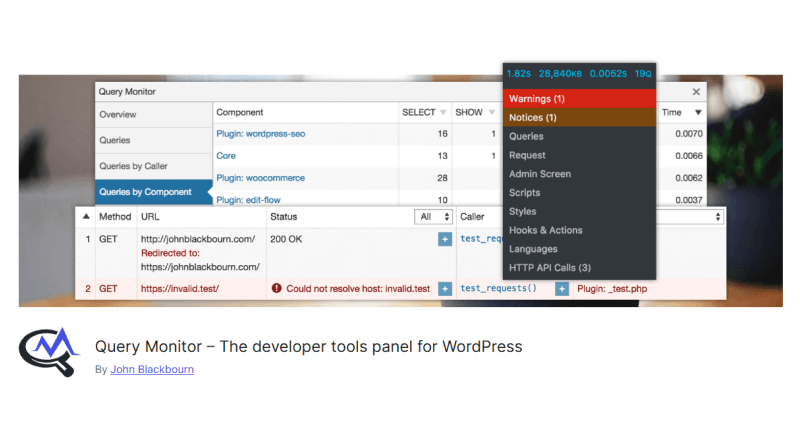
Essential features of Query Monitor WP developer plugin:
- Analyze database query execution time.
- Track and log PHP errors, warnings, notices, etc.
- Inspect Hooks, Actions, and Filters
- Monitor REST API and HTTP requests.
Best Suited For: Debugging performance-related issues and understanding the internals of WordPress.
Starting Price: Free
- Pros
- Extremely detailed debugging insights
- Lightweight and developer-focused
- Works on both frontend and admin
- Cons
- Not beginner-friendly
- Too much data for non-technical users
- Not recommended on production sites
2. Advanced Custom Fields
Developers can create structured custom fields and build dynamic content without modifying core files using Advanced Custom Fields. With its high customization, users can easily add custom fields to any WordPress screen and display values in templates using developer-friendly, hassle-free functions.
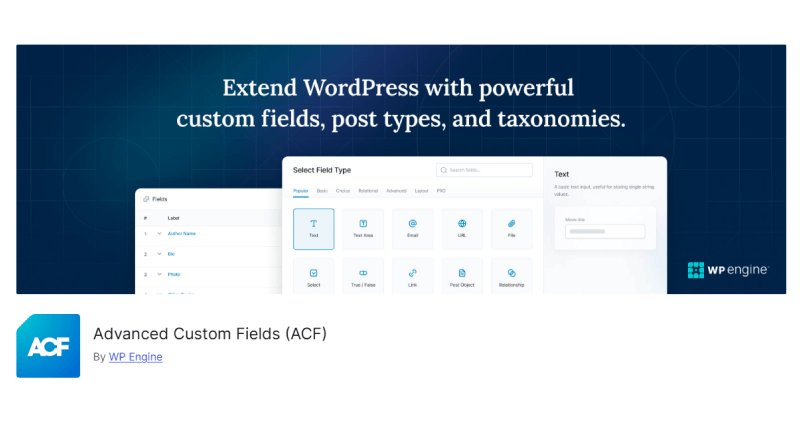
Essential features of ACF WP developer plugin:
- Create multiple custom fields
- Manage field groups using the UI
- Possesses a developer-friendly PHP API
- Supports custom blocks and options pages, etc.
Best Suited For: Creating an advanced, flexible structure for custom content.
Starting Price: Free, and Paid versions (Pro) from $49/year
- Pros
- Easy to use and well-documented
- Highly flexible for developers
- Widely supported by themes and plugins
- Cons
- Advanced features require Pro version
- Can add complexity to content management
- Performance depends on implementation
3. WP Reset
WP Reset helps to quickly return the WordPress database and environment back to their defaults, making it easy and safe for developers to rapidly experiment with them. It also features one-click snapshots and fail-safe restores, which make it a secure tool for developers to accelerate testing, debugging, and advanced site resets.
Essential features of WP Reset developer plugin:
- Full website reset/partial site reset
- Snapshot functionality of database
- Supports the WP CLI
- Support for multisite staging
Best Suited For: Rapidly testing / developing / staging WordPress environments
Starting Price: Free and paid version (Pro) from $39/year
- Pros
- Saves significant development time
- One-click recovery using snapshots
- Flexible reset options
- Cons
- Limited filesystem recovery
- Not a full backup solution
- Risky if used incorrectly
4. Code Snippets
The Code WordPress developer plugin Snippets plugin provides a flexible and safe way to add, structure, and control snippets of PHP code without manually editing your theme’s functions.php file. Each snippet can be activated and deactivated in the same manner you would with a plugin, which makes creating custom functionality and plugins for your site’s theme much easier.
Essential features of WP Reset developer plugin:
- Simple and easy-to-use interface for managing multiple snippets
- Activating and deactivating snippets easily
- Includes multiple ways to access new and existing code snippets
- A recovery mode to help you recover
Best Suited For: Developers that require custom functionality to their sites without having to manually change the theme’s core files.
Starting Price: Free with the ability to purchase premium add-ons.
- Pros
- Eliminates the need to edit theme/plugin files manually
- Keeps snippets organized and reusable
- Safe mode helps recover from issues
- Cons
- Advanced CSS/JS features may require Pro
- Errors from incorrect snippets still possible
5. UpdraftPlus
UpdraftPlus is the best-selling backup and migration solution. With this plugin, you can perform a cloud backup and migration of your WordPress site with one click. Disaster recovery and safe site migrations are the primary purposes of UpdraftPlus. It enables users to safely back up and restore their data throughout the life cycle of development.
Essential features of UpdraftPlus developer plugin:
- Backups can be scheduled or initiated on demand
- Supports multiple remote storage solutions
- Supports one-click restoration of an entire website in time
- Multisite and WP-CLI compatible
Best Suited For: Maintaining safe backups prior to upgrading, testing, or migrating a website.
Starting Price: Free and Premium from $70/year
- Pros
- Trusted by millions of users
- Multiple storage options
- Easy restoration process
- Cons
- Advanced features are paid
- Interface can feel cluttered
- Large backups may need optimization
6. WPCode
The WPCode plugin is a code management tool that allows you to insert any snippet of code (Google Analytics, Facebook Pixel, custom CSS/PHP, etc.) into your WordPress site without modifying theme files. It also includes a cloud library, conditionals, and safety features to prevent code errors that could break your site.
Essential features of WPCode developer plugin:
- Add code snippets as needed
- Conditional logic for execution of code snippets
- Execution of code snippets without error
- Cloud-based libraries for code snippets
Best Suited For: Safe addition of custom code without the risk of breaking the site.
Starting Price: Free and paid plans starting from $49/year
- Pros
- No need to edit functions.php
- Beginner and developer-friendly
- Safe code execution
- Cons
- Pro required for advanced logic
- Not a full code editor
- Limited debugging tools
7. WP-Optimize
WP-Optimize is a performance improvement plugin that enhances website performance by cleaning, compressing images, and caching. WP-Optimize speeds up websites by removing stale data such as trashed comments and revisions and also minifying scripts to create a lean, fast-loading website.

Essential features of WP-Optimize WordPress developer plugin:
- Multigrade and optimized caching system
- Cleanup and optimization of WordPress databases
- Image compression and conversion to WebP format
- Minification of CSS & JS files
Best Suited For: Improvement of a site’s speed and performance.
Starting Price: Premium subscription starting from $49/year
- Pros
- All-in-one optimization plugin
- Beginner-friendly interface
- Trusted by over 1 million users
- Cons
- Advanced caching in premium
- May conflict with other cache plugins
- Requires testing after setup
8. Health Check & Troubleshooting
Health Check & Troubleshooting is a must-have diagnostic tool created by the WordPress community, used to identify configuration errors and conflicts between plugins and themes. The plugin will run diagnostic checks on the WordPress site (checking the PHP server environment configuration and running checks for plugin and theme conflict) so that you can troubleshoot issues without interrupting your site visitors.
Essential features of Health Check & Troubleshooting developer plugin:
- Troubleshooting mode for diagnostic checks
- Running checks of the PHP server environment configuration
- Detection of plugin/theme-related issues
- Running REST API and cron checks
Best Suited For: Safely identifying plugin/theme-related issues
Starting Price: Free
- Pros
- Safe debugging without downtime
- Official WordPress plugin
- Detailed site health reports
- Cons
- Technical for non-developers
- No performance optimization
- Limited automation
9. Debug Bar
The Debug Bar WordPress developer plugin is designed to add a debug section on the WordPress dashboard, allowing developers to quickly view information about performance and queries. The plugin provides a real-time view of the most recent database queries run on your website and makes fixes while developing.
Essential features of Debug Bar developer plugin:
- Display of the latest database queries
- Track PHP errors/warning messages
- Inspect cache usage and requests
- Ability to use add-ons
Best Suited For: Quickly debugging your code while developing.
Starting Price: Free
- Pros
- Simple and lightweight
- Extendable with add-ons
- Easy toolbar access
- Cons
- Less powerful than Query Monitor
- UI feels outdated
- Limited standalone features
10. Redirection
Redirection is a tool that allows users to manage 301 redirects, monitor 404 errors, and optimize their SEO without server configurations. This plugin continuously checks permalink settings and automatically redirects the old URLs to their new counterparts. It keeps SEO rankings intact while ensuring visitors do not experience broken links.
Essential features of Redirection developer plugin:
- Manage 301 redirects
- Monitor 404 errors
- Create regex-based redirects
- Import/export rules
Best Suited For: Manage URL changes and SEO-friendly redirects while protecting your rankings.
Starting Price: Free
- Pros
- No coding required
- SEO-friendly redirect handling
- Detailed error logs
- Cons
- Large rule sets may affect performance
- UI can feel complex initially
- Not suitable for extremely large sites
How to Pick an Appropriate WordPress Developer Plugin?
Identifying the appropriate WordPress developer plugin is crucial for improving the performance of your website. But before any decision is made, you need to evaluate:
- Utilitarian Needs: Clearly evaluate the requirements that you actually need so that you can select the correct plugin that fulfills your needs.
- Rating and Review: Look for ratings and comments by users on their experience using it. Plugins that have positive reviews and ratings usually mean reliability.
- Technical Support and Timely Updates: Choose a plugin that has timely updates, provides great support, and is compatible with the latest versions of WordPress.
- Compatibility: The selected plugin should be compatible with your current WordPress version and the other installed plugins so that it doesn’t conflict with any of these.
Taking all these aspects into consideration will enable you to choose a good plugin that not only fulfills the development needs but also develops a secure and functional website.
Related: Best WordPress Security Tips Without and With The Use Of Plugins
Best Practices for Integrating WP Pluging into the Development Process
Top WordPress developer plugin integration can improve workflows, given that they’re integrated in the right manner; they save some work, time, and effort as well as enhance efficiency. Here are best practices for minimizing disruption and gaining maximum efficiency in this process:
- Assessing Compatibility with Available Plugins: Before it is brought into the system, make sure the tool will work smoothly with the version of WordPress or any tools being used to prevent clashing factors.
- Select Essential Plugins: To prevent bulking, choose essential plugins that address project-specific needs. This will be efficient when carrying out development and producing a compact website.
- Monitor Performance: Monitor the impacts of essential WP developer plugins on performance. Time might lead to some plugins slowing down your website; so, it becomes necessary to optimize or eliminate unused plugins.
- Update Plugins: The WordPress developer plugins must be up to date for compatibility and improved security.
So it can be incorporated easily into the workflow to save time and keep the websites optimized for performance when all these best practices are followed for WP developer plugins.
Conclusion
Install these WordPress Developer Plugins Immediately! Perhaps you are working on your own website or your client’s websites the aforementioned WordPress developer plugins should help make your website more functional by providing access to important debug information and generally fastening your browsing experience when creating WordPress websites.
For those who build their websites using MilesWeb’s Cloud Pro WordPress hosting plan, installation of the given plugins would open up the entire collection of development resources, including the REST API, WordPress optimized stack, automatic WordPress updates, advanced management, WordPress staging, and much more.
FAQs
1. Are WordPress developer plugins effective in debugging and troubleshooting?
Yes, Indeed! WordPress developer plugins are effective in debugging and troubleshooting because they provide plenty of options for spotting errors, maintaining performance stats, and optimizing code. This makes finding where the bugs lie easier, expediting their resolution.
2. Do plugins for WP developers seem useful for code optimization and improved performance?
The must-have WordPress plugins for developers are beneficial for the optimization of code and improvement in performance. They automate tasks, speed up the website, and provide resources that would lead to improved management of resources in the development process to bring about higher efficiency and improvement in overall website performance.
3. Clarify how the website can be secured with the top WordPress developer plugins.
To minimize the chances of hacking and loss of confidential data, security is combined with the help of plugins, including a firewall, malware scanner, login protection, and real-time detection of threats, all of which the top WordPress development plugins should have. However, the Wordfence security plugin can also safeguard your website against brute force attacks, detect vulnerability exposure, and offer regular updates to keep the website secure against emerging threats. This allows web developers to easily implement security against hacking and data breach risks.
4. How does a WordPress developer plugin contribute to sharpening my WordPress development skills?
A WordPress developer plugin can simplify complex workloads by automatizing redundant tasks & adding star-studded features. This helps one to pay attention to the most critical development while understanding how to install and optimize the plugins to the best potential and achieve superior performance, security, and increased standards, thus improving his/her efficiency and proficiency.