
 Grace Cornish
Every time you press Play on Netflix, you unknowingly start up thousands of small, digital ‘containers’ that work together to stream your show.
In the past, one tiny mistake in the code could crash the whole website for everyone. Now, Netflix uses containers and flexible databases like MongoDB. With reliable MongoDB VPS hosting tools, Netflix can fix bugs and add new features 1,000 times a day. This happens without the app ever crashing or slowing down.
It’s the secret tech that ended ‘site maintenance’ breaks forever. Here is how it works.
In software development, the “It works on my machine, but not yours” issue no longer exists. The application, with its dependencies, is packaged as a single, relocatable unit. No matter where the application ends up (a laptop, a development VPS server, or a public cloud), it can run effectively if set up properly.
This detailed MilesWeb blog is intended for developers, DevOps engineers, and new users looking to run MongoDB using Docker in a practical and dependable fashion. This guide will take you through each step of setting up a MongoDB database using Docker, whether you are creating a local development environment for testing a database configuration or you are preparing for scalable production deployments, by providing clear and concise instructions.
Table Of Content
What is MongoDB? Explained in Detail
MongoDB is among the most popular databases within this containerization ecosystem. As a document-based NoSQL database, MongoDB is designed specifically to store data in multiple flexible, JSON-based structures. This design makes MongoDB an ideal choice for applications needing scalability, short development cycles, and dynamic schema redesigns. Beyond its ability to accommodate large volumes of unstructured data, MongoDB’s horizontal scalability (especially with the best MongoDB hosting providers) is another reason many developers choose this database for modern web and mobile applications.
Using Docker to run MongoDB makes it easier for developers to get started with the database. They can quickly and easily deploy new MongoDB instances without worrying about manual software installations, wrong version installations, or inconsistent environments.
Using containers creates an isolated environment, allowing the database to operate independently on the hosted server/unmanaged VPS server. This makes it easier to recreate and scale across multiple environments. Thus, Docker usage is a perfect solution for both development and production-ready deployments.
What is Docker? Explained in Detail
The Docker container platform provides developers with an easy-to-use, open-source tool for packaging and running their application code in a container. A container is just a single unit that contains all the necessary resources needed to run the application. This comprises code, runtime, libraries, and all of the dependencies on the operating system to allow that application to run as designed. Because everything is packaged together, you can be assured that your application will work the same way regardless of where it is run (developer’s local machine or production environment).
Containers vs. Virtual Machines
There is a significant difference in the comparison of containers vs. virtual machines (VMs), especially in the isolation of applications from one another. To isolate an application, VMs run their own operating system (OS) that requires a hypervisor. Because every VM includes a separate operating system, they are generally more resource-intensive and slower to start than containers.
Containers, on the other hand, share the host operating system’s kernel and provide process-level isolation of the application. As a result, containers are far lighter than VMs, and they are quicker to start and consume less CPU and memory. Therefore, there is significantly less overhead in running containers compared to VMs on the same host system.
Benefits of Using Docker for Databases
There are several advantages to using Docker for databases. Docker simplifies the process of setting up and managing databases. This is done by creating a fully operational database with just one command instead of installing and configuring it manually. This makes it an excellent option for both rapid development and testing, providing a repeatable development experience.
By using Docker to run your database instance, you can ensure that all your different environments are kept consistent from development through staging to production. This can be done because you can use the same container image for each environment, so there is less disruption due to environment-related configuration differences.
The other significant advantage to running a database (MongoDB using Docker) is that you can keep the database instance separate from any other applications or operating environment configurations. This eliminates the potential related dependency stability problems within your system.
Finally, since Docker containers are lightweight, portable, and easily replicated, you can quickly move your whole database instance from one environment to another or even scale it to fit new technologies and methodologies in today’s ever-changing architectural landscape.
Why Run MongoDB in Docker? Top Benefits
Using Docker to operate MongoDB enables efficient and effective management of database environments without the complexity of traditional installations. It complements speed, consistency, and scalability as core elements of modern development workflows.
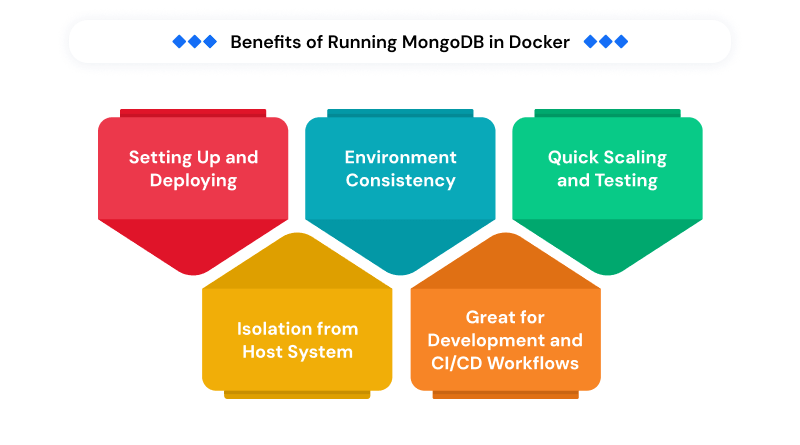
1. Setting Up and Deploying
By eliminating the need for manual installation and configuration of MongoDB, setting up and deploying MongoDB via Docker becomes incredibly easy. Developers can just run one command to download the MongoDB image, and they have a fully operational MongoDB database ready. This saves enormous time as compared to traditional installation and deployment methods of MongoDB, especially when you are working with multiple environments or bringing new developers onto the team.
2. Environment Consistency
Consistent application behavior within the various development environments is one of the naturally occurring challenges in software development. Using Docker solves this problem since it provides a defined MongoDB package and all of the supporting dependencies in one image file. Therefore, if the same image is used for development, testing, and production, there will be no difference between the configuration or behavior in any of the environments, no matter how many copies are used.
3. Quick Scaling and Testing
Because container technology is designed to be lightweight, containers are rapidly started or stopped (within seconds or minutes, depending on conditions). Hence, developers can initiate multiple copies of MongoDB for testing purposes. Examples: to perform load simulation, to test different configuration options, or to verify scaling plans. As a result, developers can freely experiment without affecting the initial MongoDB database instance.
4. Isolation from Host System
Running MongoDB inside a container allows MongoDB to perform well outside of the host system. This isolation prevents conflicts with other applications, operating system libraries, or other versions of MongoDB that are installed on the same host. Cleaning up after containers also becomes easy, as their removal does not affect the host environment.
5. Great for Development and CI/CD Workflows
Docker integrates well with CI and/or CD workflows. You can create new MongoDB containers quickly and automatically test them. With every build running against a downloaded version of the databases, you can improve reliability and decrease the number of failed deployments.
Prerequisites For Running MongoDB in Docker
To run MongoDB within Docker, you must have the following things set up ahead of time. This makes your experience smooth and settled, and everything goes well.
1. Docker Installed (Docker Desktop / CLI)
You must have a working installation of Docker on your system or a version of Docker Desktop (Windows and macOS) or access to Docker Engine, including a command line interface (CLI), on Linux. The ‘Verify the Docker’ service gets started and it is accessible through a terminal. A quick way to verify you have Docker installed and working properly is by executing “docker –version” at the command prompt.
2. Understanding the Command Line
A basic command-line understanding is required, as most of the operations with Docker are done through it. You should be comfortable moving around directories and executing commands. The understanding of the command’s output helps when running containers, managing images, and debugging.
3. Optional: Docker Compose
Though it is not required, Docker Compose is highly recommended if you need to manage multi-container deployments with configuration definition and structure. Docker Compose allows you to use a YAML file to configure and run MongoDB services, allowing you to consistently and efficiently deploy your MongoDB application.
Once you have met the above basic requirements, you can start working with Mongo in a Dockerized environment.
Downloading the MongoDB Docker Image
Before you run a containerized database using MongoDB in a Docker container, you need to download the container image from Docker Hub.
What is Docker Hub?
Docker Hub is a cloud-based server repository of container images for developers and organizations to publish and distribute their container images. There are thousands of images available on Docker Hub, and developers use Docker Hub to standardize their application deployments using pre-built images from software vendors (e.g., operating systems). These images are properly versioned, documented, and ready to run without requiring building all application components from scratch.
Command to Pull MongoDB Image: docker pull mongo
This retrieves the newest version of MongoDB’s official Docker container from Docker Hub onto your computer. You can also pull a particular tagged version of the image, such as “docker pull mongo:6.0,” which is an integer.
It is strongly advised that in production environments, you should use a specific version of the MongoDB container named with a tag, instead of using the most up-to-date version without specifying a tagged version.
Benefits Of Utilizing The Official MongoDB Image
The official MongoDB broccoli from Docker Hub has been developed in collaboration with MongoDB. This collaboration creates a quality image that is consistent with industry best practices.
- The official MongoDB image is updated with patches and stable releases on a scheduled basis. This reduces the chances for potential breaches or vulnerabilities from the container.
- These MongoDB images are built using industry-standard best-practice configuration guidelines and thus are easier to integrate into development or production.
- These images are also extensively documented, and therefore, they are easily configured with variables such as authentication or the location of data in the container.
By using the official MongoDB image, you know that you are using an image that has been tested as trustworthy and optimally configured. Therefore, using the official image substantially reduces any compatibility or security issues.
Running MongoDB Container (Basic Example)
After the first step in running a MongoDB container (pulling down the MongoDB image from Docker Hub), the next step is to run a straightforward command to start your MongoDB container.
Basic Run Command:
docker run -d -p 27017:27017 --name mongodb-container mongoThis command creates and runs a new MongoDB container using the default options (parameters), explained below.
-d (Detached Mode)
The -d flag runs the container in the background (detached mode) so you can continue using the terminal while the MongoDB instance runs independently of your terminal session. Without this flag, the container would run in the foreground and occupy the terminal session.
-p (Port Mapping)
The -p flag maps a port from the container to the host machine. In this case, 27017:27017 maps the default port for MongoDB in the container (27017) to the same port on the local machine. Therefore, you will be able to connect to MongoDB using localhost:27017.
–name (Container Name)
The –name flag gives your container a custom name. In this instance, the custom name mongodb-container makes it easier for you to reference and manage the container using Docker commands (e.g., start, stop, and logs) in the future as opposed to using an automatically generated container ID.
With these steps complete, your MongoDB instance is now up and running in a container, ready to accept connections from applications or database clients.
Connecting to MongoDB Container
Once a MongoDB container has been started in Docker, connecting to it is the next step. Accessing the database can be done by either command-line interface methods or graphical interface methods.
Using the Mongo Shell (Command-Line Interface Method)
An interactive shell that is included with MongoDB, called “mongosh,” allows you to run queries, manage databases, and perform administrative tasks. If you already have the MongoDB shell installed locally, you can access it using the following:
mongosh mongodb://localhost:27017Alternatively, you can connect using the mongosh command directly in your running container:
docker exec -it mongodb-container mongoshThis method provides you with an interactive session in your running container.
Using GUI Tools (MongoDB Compass: Graphical Interface Method)
For those who prefer a visual interface, there is MongoDB Compass – the official graphical interface for MongoDB. MongoDB Compass allows you to explore your databases, collections, and documents without writing out queries.
How to connect with Compass:
- Open the MongoDB Compass application.
- Enter your connection string.
- Hit “Connect.”
As an example, the following will work as a connection string to connect to the MongoDB database when it is running locally without authentication:
mongodb://localhost:27017If authentication is configured later, then the connection string would need to be configured to include a username, password, and authentication database.
Whether you want to use the command-line tools or GUI tools to access MongoDB depends on your workflow requirements and preferences.
Important Step: Running MongoDB with Persistent Storage
A major aspect of using MongoDB with Docker is the need for data persistence.
The issue: Loss of data
When data is created in a container, it is only present as long as there’s the container itself. Therefore, once the container is destroyed, all associated data is also destroyed. This isn’t a good outcome for database usage; developers need their data to continue to exist even after the container has been removed. In simple terms, the data must remain forever.
The resolution: Use Volumes
Docker volumes give you the authority to have data outside of the container. In fact, it even allows the container to have access to this data. Thus, even if the MongoDB container stops or is restarted, the data associated with the container continues to exist on the Docker host.
Docker will manage your volume, and because they are specifically designed for persistence, volumes are significantly easier and more effective to manage compared to saving data in containers.
Example with Volume Mapping
docker run -d \
  -p 27017:27017 \
  --name mongodb-container \
  -v mongodb-data:/data/db \
  mongo
How It Works
- -v mongodb-data:/data/db: This mounts and creates a Docker volume called “mongodb-data.”
- /data/db: It is the location within the container that MongoDB stores data by default.
- The data stored in that folder will persist on the Docker volume and be available even after the container is deleted.
Using volumes is a best practice when using Docker to run databases. It provides data durability with the flexibility to move your containers anywhere you choose.
Setting Up MongoDB with Authentication
By default, when you start up a MongoDB container the first time using Docker, authentication is not enforced. While this might be satisfactory for fast tests locally, this is not a secure practice, especially for a production environment. Authentication ensures that only authorized personnel can access and change your data.
Why Authentication is Important
Authentication is one of the most basic layers of security for any type of database. Without authentication, anyone who has access to the same network as the MongoDB server can read, change, or delete your data. This could lead to a data breach, unauthorized changes to data, or complete loss of data.
By configuring authentication:
- You limit access to verified users only.
- You can apply roles and permissions for limited access.
- You increase the overall security of the database, particularly when using the database in a production or shared environment.
Example Using Environment Variables
When running MongoDB in Docker, you can enable authentication by defining environment variables for the root user during container initialization.
docker run -d \
-p 27017:27017 \
–name mongodb-secure \
-v mongodb-data:/data/db \
-e MONGO_INITDB_ROOT_USERNAME=admin \
-e MONGO_INITDB_ROOT_PASSWORD=securepassword \
mongo
How It Operates
MONGO_INITDB_ROOT_USERNAME determines the username of the root user, while MONGO_INITDB_ROOT_PASSWORD specifies the password. Both usernames and passwords are generated when the container is initialized for the first time. As soon as these variables are defined, the authentication process is enabled automatically.
An example of the connection string for authentication purposes would be as follows:
mongodb://admin:securepassword@localhost:27017Using MongoDB with Docker Compose
This step provides a better structure for managing your containers as your application grows beyond a single Docker run command. Thus, it becomes very useful, given that you define the multi-container application with a simple YAML config file.
Why Use Docker Compose?
Using MongoDB with Docker Compose provides a more structured way to manage your containers as opposed to having long-running container instances. Moreover, through Docker Compose, you will benefit from the usage of MongoDB through the following:
- Simplified Configuration: All container definitions (port mapping, volume mapping, env variables, etc.) are defined within one file.
- Reproducible Configuration: Allowing architectures with similar configurations to share and reuse configurations across multiple environments.
- Ease of Use: Users get to manage all of their services with one command (start, stop, or manage all services).
- Scalability: Easily add additional services to the configuration to allow your backend APIs to grow.
Sample docker-compose.yml
version: '3.8'

services:
  mongodb:
    image: mongo:6.0
    container_name: mongodb-compose
    restart: unless-stopped
    ports:
      - "27017:27017"
    environment:
      MONGO_INITDB_ROOT_USERNAME: admin
      MONGO_INITDB_ROOT_PASSWORD: securepassword
    volumes:
      - mongodb-data:/data/db

volumes:
  mongodb-data:
By using Docker Compose, it is much easier and scalable to use Docker’s templated approach for managing MongoDB instancing with other environments, such as larger stacks or CI/CD builds.
Managing MongoDB Containers
Now that your MongoDB instance is running in Docker, we now have to effectively manage the life cycle of the MongoDB collection. Docker has simple commands to manage the life cycle of the container and monitor the operations inside of the MongoDB container.
To start, stop, and restart your MongoDB container, you can use the following commands:
Start your stopped MongoDB container
docker start mongodb-containerStop your currently running MongoDB container
docker stop mongodb-containerRestart the MongoDB container
docker restart mongodb-containerTo use the above commands, you will use the original name (mongodb- container) that was set previously, so this makes managing the life cycle of your mongodb container simple.
Now you can view the logs from your MongoDB container with the following command:
docker logs mongodb-containerThe above command shows you the logs generated by the MongoDB container. Logs are critical for monitoring database activity, troubleshooting startup issues, and tracking failures.
You can also view live logs using the following command:
docker logs -f mongodb-containerBest Practices for Running MongoDB in Docker
There are many best practices for running MongoDB within a Docker environment that is well-tested and proven to be reliable, secure, and perform well across multiple environments.
1. Persist Your Data in Volumes
When you create a database, try to always use volumes to persist your data. It is important to make sure that whatever data has been written to the database remains in place even if the original Docker container has been stopped, restarted, or removed.
2. Do Not Hard-Code Sensitive Information
Whenever possible, avoid hard coding of the sensitive information (like usernames and passwords) into command-line arguments or config files. Use environment variables, .env files, or some other secret management option wherever possible. Also, implement some form of authentication to avoid allowing unnecessary access to your sensitive information.
3. Control Resource Usage
Implement resource limits (CPU and memory) on your containers. Containers use an inordinate amount of resources unless resource limits are put in place to cap them. Be particularly aware of this when running many containers on the same host or in a shared environment (such as using Kubernetes).
4. Use Docker Compose for Production Deployments
Do not attempt to manage multiple Docker containers in production using only the CLI. Use Docker Compose to provide a consistent and repeatable method for defining services, volumes, and configurations for your entire production environment. By doing so, you will increase the maintainability and reduction of time required to deploy your MongoDB.
5. Continuous BackUps
Regular backups are essential to protect from data corruption, accidental deletion, or system failure. They are an automated backup strategy. With the tools supplied by MongoDB, such as mongodump and mongorestore, you can create and restore backups efficiently.
Following best practices guarantees that your MongoDB container configurations continue to be secure, stable, and production-ready over time.
Use Cases of MongoDB in Docker Container
Implementing MongoDB in Docker is not limited to the basic configuration. In addition, it also plays a fundamental role in modern development and deployment workflows. Below are the most common use cases that highlight the benefits of using MongoDB in a Docker container (type of implementation):
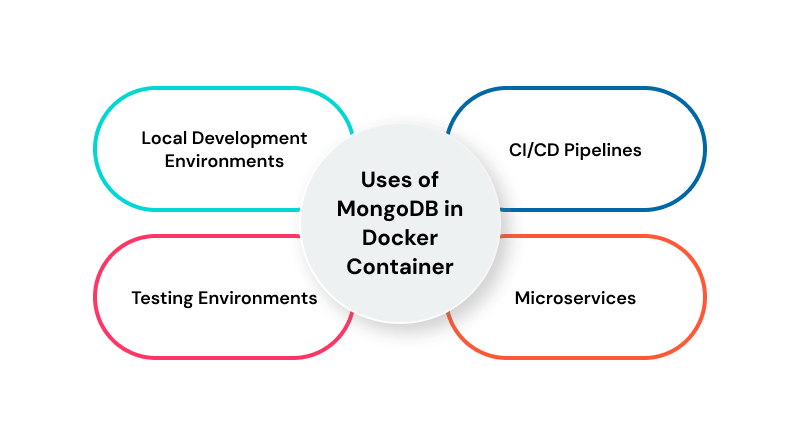
– Local Development Environments
With the use of Docker software, developers can easily create a MongoDB instance without having MongoDB installed on their actual machine. By doing so, developers can prevent having version conflicts and keep their personal workstations clean. This way, each project has its own separate database container and offers more consistent versions for all users.
– CI/CD Pipelines
During continuous integration and deployment workflows, MongoDB containers are dynamically provisioned during each build or test cycle. As a result, this guarantees that every execution of the pipeline has a new copy of the MongoDB database (it’s provisioned in the exact same way as the previous).
– Microservices
Microservices architectures allow each service to have its own database containers. MongoDB works perfectly for this type of architecture with its flexible schema and easy scalability. Using Docker to deploy the microservices means that each service runs independently of the others, with well-defined boundaries between them.
– Testing Environments
MongoDB containers are great for testing setups that need to run a temporary database. Developers can spin up isolated environments for unit, integration, and performance tests. Once the tests are done, the containers can be torn down without disrupting the other environments.
Final Takeaway
By running MongoDB in Docker, database administration becomes more streamlined and dependable. Setting up MongoDB in Docker is easier than traditional database setups. Here, the databases in Docker can be spun down when no longer needed and easily scaled to meet demand.
Additionally, the excellent isolation between the database and the host operating system makes MongoDB deployed in Docker a very appealing option for developers, DevOps teams, and organizations seeking to create efficient and reproducible workflows.
As your system grows, it is a natural progression to move from standard container commands to using Docker Compose. To further enhance your capabilities, consider using Kubernetes or another container management service to manage automated deployments, scaling, and load balancing across larger applications and workloads.
Once you have established these basic components as guided in our blog, you’ll be ready to transition from local development instances to fully scalable, production-ready database systems.
FAQs
1. How to use Docker with MongoDB?
To use Docker with MongoDB, you can pull the official MongoDB image from Docker Hub and run the container with a basic ‘docker run’ command. This will create an instance of MongoDB using all of the default configuration options, which can then be altered through the use of ports, local disk storage options, and environment variables.
2. Is MongoDB safe for production using Docker?
Yes, it is safe to run MongoDB in a Docker container for production purposes when properly configured. Configuration should include authentication enabled, using persistent disk storage, securing password data, and limiting container resource consumption. For deployment in production environments, it is recommended to use tools like Docker Compose or container orchestration platforms for better tracking and scaling ability.
3. How do I maintain persistent MongoDB data in Docker?
Using Docker volumes provides a means of achieving persistence of MongoDB data by mounting your host machine volume to the MongoDB data directory (/data/db). Since the data is stored outside the MongoDB container, your database files remain safe even if the container is stopped, removed, or recreated.
4. What is the method for connecting to my MongoDB container in Docker?
You can connect to your MongoDB container through either the mongosh or GUI tools, such as MongoDB Compass. Connection strings are often used, such as mongodb://localhost:27017. Credentials may be supplied if authentication is required.