
 Jackson Lane
In today’s fast-paced IT world, remote desktops play a crucial role in providing access to web projects from any location. Many remote workers use this methodology to streamline their workloads. Thus, Microsoft has built the RDP (Remote Desktop Protocol). Its graphical interface allows users to connect remote computers or RDP VPS servers virtually.
Want to discover what is RDP, we have covered it! But as a techie, you might look for the best RDP alternatives to fill the gaps in functionalities. This guide reviews the best remote desktop alternative for Windows. But RDP has some technical limitations as well which we have covered in this guide. Hence, let’s look at why we must look for RDP alternatives.
Why Are Remote Desktop Tools Essential for Modern IT Management?
After the pandemic, IT teams have started working remotely that has streamlined operations effectively. With this, on-premises expenditures were reduced and proven to be a cost-saving measure for IT companies. Today, many companies leverage remote desktop access for better convenience, control, security, and speed.
Major challenges solved by remote desktop control:
- Delayed IT Support & Downtime: IT support admins can access affected systems remotely and resolve issues without much waiting period.
- Managing Remote & Distributed Teams: Enables seamless system access and support for employees working from home, branch offices, or different geographies.
- High On-Site Support Costs: Remote troubleshooting reduces travel, hardware handling, and on-premise maintenance expenses.
- Limited Access to Critical Systems: IT teams manage servers, desktop, and applications remotely even during emergencies or non-working days.
- Complex Device Management: Eases the handling of multiple devices, operating systems, and locations from a centralized dashboard. Users gain control access using integrations with SSO, Active Directory, or custom permissions.
Key Market Trends
Asian Pacific (APAC) holds 22% of the global market share of the remote desktop software market. The region has a total of 3.5 million licenses. Out of which China represents 29% of regional usage, India ranks 2nd with 24% and Japan with 18%. The monthly session volume reached 540 million, with an average session duration of 44 minutes, reflecting a blended infrastructure maturity of 52% for cloud deployments and 48% for on-premise deployments.
Table of Content
RDP Alternatives: Why Do You Need Them?
1. Security Concerns with RDP
Remote Desktop Protocol (RDP) is widely used for remote access but has some inherent security risks that can’t be ignored. Cybercriminals often target RDP connections due to their vulnerabilities. RDP can expose your systems to brute force attacks, unauthorized access, and data breaches if not correctly configured. Even with the best intentions, managing RDP security can be challenging, especially for those who are not IT experts.
That’s why exploring RDP alternatives is crucial. Many of these alternatives come with built-in security features like end-to-end encryption and two-factor authentication (2FA). These added layers of security protect your sensitive data and provide peace of mind, making them a more secure choice for remote access. The same feature is available with SSL certificates as well.
2. Performance Issues and Limitations
RDP performance can be problematic sometimes, particularly if you use slow or unreliable internet connections. Lag, latency, and disconnections can frustrate users and hinder productivity. The main reason is that RDP data transmission is only sometimes optimized for all network conditions. If you are experiencing frequent performance hiccups, it might be time to look for an RDP alternative.
Luckily, many RDP alternatives are engineered explicitly to optimize performance even in poor network conditions. Tools like AnyDesk and Splashtop apply advanced compression algorithms and low-latency protocols to ensure uninterrupted, smooth remote access experiences. By switching to one of these alternatives, you can work more efficiently, even when your internet connection isn’t perfect. All these performance-compliant features are in MilesWeb’s web hosting servers, which assures 99.95% uptime for all websites and applications.
3. User-Friendliness and Accessibility
RDP is a powerful tool, but it’s not always the most user-friendly option, especially for those who are not tech-savvy. Setting up and managing RDP connections can be complex, requiring a good understanding of networking and system administration. This complexity can be a barrier for individuals or small businesses looking for an alternative to RDP for simplified virtual/remote access.
That’s where RDP alternatives shine. Many of these tools are designed with ease of use in mind, offering intuitive interfaces and simple setup processes. For example, TeamViewer and Chrome Remote Desktop allow you to get started with just a few clicks without needing deep technical knowledge. This accessibility makes these alternatives ideal for anyone looking to establish remote access quickly and easily.
4. Compatibility with Multiple Devices
RDP was initially designed for Windows environments, which can be limiting if you need to connect to devices running different operating systems. While RDP can work with non-Windows systems through additional configurations, it’s not always seamless. This lack of native compatibility can be frustrating, especially when users need to connect across various devices like MacOS, Linux machines, and mobile devices.
RDP alternatives, on the other hand, often support a wide range of operating systems that are out of the box. Tools like VNC Connect and Parallels Access provide cross-platform compatibility, allowing you to easily connect to Windows, macOS, Linux, and even mobile devices. This flexibility ensures that you can maintain consistent remote access, regardless of the device or operating system you’re working with.
RDP Alternatives: Which Tool is Right for You?
There are several factors to consider while choosing the right RDP alternatives. The correct decision-making process requires security, compatibility, and data security infrastructure.
1. Security
What makes every website owner concerned? They are concerned about data security while working on the remote connection. Hence, while looking for an RDP alternative, ensure that the program is centralized with multi-factor authentication and security features. As a result, it protects websites from different kinds of cyber-attacks during remote sessions.
2. In-Depth Audit Records
As a user, you need to audit your system regularly with the help of tools. System administrators and IT teams can quickly evaluate what’s occurring, the network issues, hardware failures, and monitoring unusual activity. Thanks to audit logs that detect threats and other issues. If your servers have the Acronis Cloud Backup feature, the auditing part becomes more accessible. But still, if your server is not compatible with the Acronis Cloud backup feature, it is recommended to choose the RDP alternative.
3. Performance and Reliability
Performance and reliability are critical for maintaining productivity, mainly if you rely on remote access for daily operations. Choose an RDP alternative that delivers fast, low-latency connections, even over less-than-ideal network conditions. Tools that use advanced compression and optimization techniques can provide smoother performance, reducing lag and disconnections.
RDP Alternatives: Which One is Right For You?
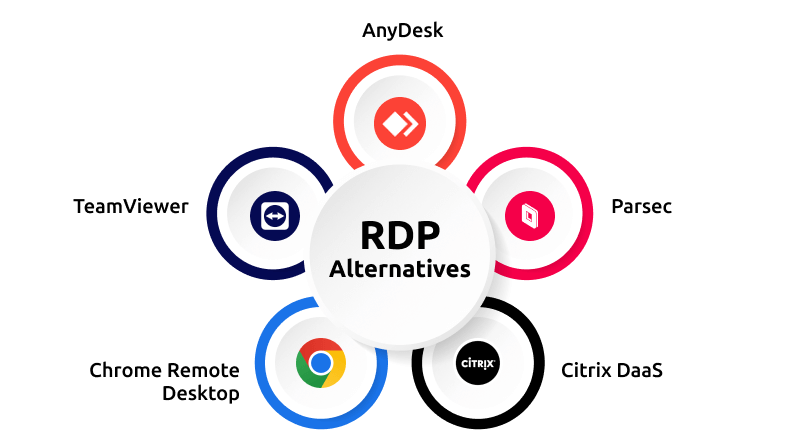
Finding out the best RDP alternative? Review yourself with pros and cons that align with your business goals.
1. AnyDesk
AnyDesk crowns the list of best RDP alternatives where users access different devices remotely. They get access to desktops, machines, Windows VPS servers, and other devices. The user experience and intuitive installation process make several technical activities streamlined. They get benefits like fast file transfer, chat, screen sharing, and secure access to virtually any system.
AnyDesk users have free access for the first six months of sign-up. If they are ready to upgrade plans, there are different price quotations depending on the number of devices and users.
| Pros | Cons |
| Fast connection speeds, high image quality. | Can be affected by network conditions. |
| Simple interface, easy to set up. | Limited customization options.. |
| End-to-end encryption, two-factor authentication. | Security relies on user practices. |
| Works on various operating systems. | May have compatibility issues with specific software. |
A Quick Glance:
| Feature | AnyDesk Details |
| Developers | AnyDesk Software GmbH |
| Year launched | 2014 |
| Platform type | Cloud-based and On-premises |
| What it does? | Ultra-fast remote desktop and server access |
| Top 3 use cases | IT support, Remote work, and Server maintenance |
| Who is it for? | Freelancers, IT teams, and Large enterprises |
| AI capabilities | AI Copilot: Real-time tech support and automated session summaries |
| Where can you use it? | Windows, macOS, Linux, Android, iOS, and Raspberry Pi |
| Starting price | $23.12/month (Solo plan) |
| Free version | Yes, for personal use (plus a 6-month trial offer) |
2. TeamViewer
TeamViewer is a commonly used RDP alternative in the corporate sector,used by individuals, small businesses and IT teams. It has a whopping 99.99% uptime with a comprehensive desktop access feature. TeamViewer is a reliable solution for IT teams that need to access mobile device, tablet to resolve computer issues without much technical hassles.
Regarding its notable features, TeamViewer includes two-factor authentication, whiteboard session recording, and more. If you need to access this software, you need high-speed connectivity and a reliable IT infrastructure. TeamViewer offers expensive custom corporate plans.
| Pros | Cons |
| Extensive feature set including file transfer, remote printing, and online meetings. | Can be overwhelming for basic users |
| User-friendly interface, quick setup. | Some advanced features can be complex. |
| Robust security measures, including two-factor authentication. | Security incidents have occurred in the past. |
| Generally good performance, reliable connections. | Can be affected by network conditions. |
A Quick Glance:
| Feature | Details |
| Developers | TeamViewer SE |
| Year launched | 2005 |
| Platform type | Cloud-based (SaaS) and On-premises |
| What it does? | Unified digital workplace and remote support platform |
| Top 3 use cases | Managed IT support, Remote work, and Industrial AR assistance |
| Who is it for? | Enterprise corporations, IT departments, and SMBs |
| AI capabilities | Tia (Intelligent Agent): Automated troubleshooting and session summaries |
| Where can you use it? | Windows, macOS, Linux, Android, iOS, and Raspberry Pi |
| Starting price | ~$24.90/month (Individuals) |
| Free version | Yes, strictly for personal, non-commercial use |
3. Parsec
Parsec is not explicitly designed for core computational tasks but for gaming. However, you can control multiple desktop connections with this RDP alternative. The features include prescription input, which is perfect for videos. It has the consistent hassle-free streaming of 60 frames per second UHD (Ultra High Definition) video. Thus, you can bet on its consistency and higher performance assurance.
Parsec’s proprietary technology eliminates lag and allows you to access your hardware in seconds with near-zero latency. The tool is compatible with macOS, Windows, Linux, web, and Android platforms. There is no parent security protocol installed in it, and hence, third-party tool Datagram Transport Layer Security (DTLS) handles the security features.
| Pros | Cons |
| Optimized for gaming, low latency, high frame rates. | Performance can be affected by network conditions. |
| User-friendly interface, simple setup. | Limited features for non-gaming tasks. |
| End-to-end encryption, secure connections. | Security relies on user practices. |
| Compatible with various devices and operating systems. | May have compatibility issues with specific software. |
A Quick Glance:
| Feature | Details |
| Developers | Unity Technologies (Acquired in 2021) |
| Year launched | 2016 |
| Platform type | High-performance peer-to-peer (P2P) |
| What it does? | Ultra-low latency remote desktop streaming |
| Top 3 use cases | Remote gaming, Video editing/CAD, and Animation |
| Who is it for? | Gamers, Creative professionals, and Game developers |
| AI capabilities | Unity Muse integration: AI-assisted workflow tools for creators |
| Where can you use it? | Windows, macOS, Linux, Android, and Web |
| Starting price | $8.33/month (Individual Warp plan) |
| Free version | Yes, for personal (gaming) use |
4. Chrome Remote Desktop
Chrome Remote Desktop is a free RDP alternative that works as a proprietary remote desktop software tool by Google. It allows users to control desktops remotely through a protocol called Chromoting. With this, users share your screen to collaborate in real-time or connect with another computer to give or receive remote support.
Chrome Remote Desktop uses advanced technologies like WebRTC. With this, you can easily connect your devices and share screens easily. One major feature in it is the device synchronization between smartphones and workstations. Both Android and iOS users can use this RDP alternative with the encryption technology of minimum of 128-bit AES-GCM encryption for professional subscription and up to 256-bit AES-GCM for enterprise users.
| Pros | Cons |
| Simple setup, user-friendly interface. | Limited advanced features. |
| Works on various devices (Windows, Mac, Linux, Android, iOS). | Performance might vary across different platforms. |
| Basic security measures (PIN protection). | Security is less robust compared to dedicated remote access tools. |
| Free. | Limited feature set compared to paid options. |
A Quick Glance:
| Feature | Details |
| Developers | Google LLC |
| Year launched | 2011 |
| Platform type | Web-based (Chromoting protocol) |
| What it does? | Browser-based remote access and screen sharing |
| Top 3 use cases | Personal file access, ad-hoc tech support, and screen sharing |
| Who is it for? | Individuals, students, and small business users |
| AI capabilities | Integrated Gemini in Chrome for session summaries and safety alerts |
| Where can you use it? | Windows, macOS, Linux, ChromeOS, Android, and iOS |
| Starting price | $0 (Completely Free) |
| Free version | Yes, full access for all users |
5. Citrix DaaS
Citrix DaaS (Desktop as a Service) presents itself as a compelling alternative to traditional Remote Desktop Protocol (RDP). By delivering virtual desktops and applications as a cloud-based service, Citrix DaaS offers enhanced security, scalability, and flexibility compared to traditional RDP solutions. This cloud-based approach ensures that users can access their work environments from any device with an internet connection, promoting remote work and business continuity.
Citrix DaaS stands out by providing a comprehensive platform that encompasses application virtualization, desktop virtualization, and mobility management. This holistic approach empowers organizations to streamline operations, improve user experience, and reduce IT overhead. Additionally, Citrix DaaS excels in delivering high-performance graphics and multimedia applications, making it suitable for industries such as design, engineering, and healthcare that rely heavily on visual computing.
| Pros | Cons |
| Access from any device, cloud-based, scalable. | Can be complex to manage, potential for high costs. |
| Centralized management, data protection, compliance. | Reliance on cloud providers, potential security risks. |
| High-performance graphics, optimized for various applications. | Can be affected by network conditions, latency issues. |
| Potential cost savings on hardware, software licensing. | Ongoing subscription costs, additional fees for certain features. |
A Quick Glance:
| Feature | Details |
| Developers | Cloud Software Group (Citrix) |
| Year launched | 2022 (Rebranded from Citrix Virtual Apps and Desktops) |
| Platform type | Cloud-native, Hybrid, and Multi-cloud |
| What it does? | Full desktop and application virtualization from the cloud |
| Top 3 use cases | Hybrid work deployment, Scalable VDI, and Secure contractor access |
| Who is it for? | Enterprise corporations, Healthcare, and High-security industries |
| AI capabilities | Citrix Aidrien: AI-operations assistant for IT troubleshooting and insights |
| Where can you use it? | Windows, macOS, Linux, Android, iOS, and Thin Clients |
| Starting price | $10.00/month per user (Standard tier) |
| Free version | No (Limited-time free trials available) |
6. GO-Global
GO-Global is one of the leading remote access software that does not involve any overhead costs. It is specifically designed for ISVs (Independent Service Vendors). GO-Global’s lightweight architecture demands less bandwidth and allows users to access applications seamlessly over the web from any device by just an app. Different industry segments like accounting, medical, ERP, CRM and hospitality sectors leverage this remote access software. GO-Global provides users with seamless, web-based access to a wide range of applications, delivering a streamlined mobile experience without the requirement of a traditional desktop interface.
| Pros | Cons |
| No Microsoft RDS or Citrix license fees. | Limited to Windows-based applications. |
| Pay for active users, not total users. | Not designed for full VDI/Start Menu access. |
| Fast setup with minimal IT overhead. | Smaller ecosystem than major competitors. |
| Apps run as standalone windows, not a desktop. | Primarily built for ISVs, not general IT. |
A Quick Glance:
| Feature | Details |
| Developers | GraphOn Corporation |
| Year launched | 1996 |
| Platform type | Cloud-based, on-premises, and hybrid |
| What it does? | Application publishing and web-enabling solution (replaces Microsoft RDS) |
| Top 3 use cases | Web-enabling legacy Windows apps, SaaS transitions for ISVs, and secure remote app access |
| Who is it for? | Independent Software Vendors (ISVs), Managed Service Providers (MSPs), and SMBs |
| AI capabilities | Mobile Sense technology (AI-driven interface optimization for mobile touchscreens) |
| Where can you use it? | Windows, macOS, Linux, Chrome OS, Android, and iOS (via browser or client) |
| Starting price | ~$4.00/month per concurrent user (based on volume) |
| Free version | No (30-day free trial available) |
7. Splashtop
Splashtop facilitates the cross-platform remote access with a simplified setup. One of the best RDP alternatives for Microsoft native’s Remote Desktop Protocol offers high performance along with ensuring affordability and security. Unlike other RDP alternatives mentioned in the blog, Splashtop requires technical network configurations over the internet usage. The tool uses a proprietary engine that delivers 4K streaming at 60 FPS with low latency. MilesWeb mirrors this latency rate in Windows hosting plans that outperform the RDPs standard capabilities in security and reliability.
| Pros | Cons |
| 4K streaming at 60fps with low latency. | Requires separate “Streamer” and “Client” apps. |
| Much cheaper than TeamViewer or LogMeIn. | The free version won’t work over the internet. |
| Features MFA and 256-bit AES encryption. | Admin portal can feel cluttered for large teams. |
| View multiple remote screens simultaneously. | Some advanced features are Windows/Mac only. |
A Quick Glance:
| Feature | Details |
| Developers | Splashtop Inc. (formerly DeviceVM, Inc.) |
| Year launched | 2006 (Brand renamed to Splashtop in 2010) |
| Platform type | Cloud-based, On-premises, and Hybrid |
| What it does? | High-performance remote desktop, support, and endpoint management |
| Top 3 use cases | Remote work (WFH), IT help desk support, and Distance learning |
| Who is it for? | IT professionals, SMBs, Educators, and Creative Professionals (Artists/Editors) |
| AI capabilities | AI-powered CVE (vulnerability) summaries and automated risk insights |
| Where can you use it? | Windows, macOS, Linux, Android, iOS, and Chrome OS |
| Starting price | $5.00/month (Business Access Solo) |
| Free version | Yes, for personal use (on local home networks only) |
8. Parallels RAS (Remote Application Server)
Parallels RAS is an application virtualization tool that enables businesses to deliver Windows-based applications from a centralized environment to end-users. Originally launched in 2014 by 2X Software, which was later acquired by Parallels, it removes the need to install individual applications on every device. Instead, users access applications through a centralized dashboard known as the Parallels Client.
Parallel’s remarkable benefit is its cross-platform reach. Windows applications can be accessed seamlessly from devices that do not natively support them, including Macs, Chromebooks, Android, and iOS devices, making it suitable for heterogeneous IT environments. The solution supports on-premises infrastructure as well as public, private, and hybrid cloud deployments, giving businesses flexibility in how they architect their remote access setup.
| Pros | Cons |
| Cross platform delivery from Windows apps to non- Windows apps. | Restricted to OS remote desktop tool. |
| Flexible deployment. | Complex pricing structure. |
| Centralized management reduces IT overhead. | No free version available. |
| Strong fit for regulated industries. | Steeper learning curve for initial setup. |
A Quick Glance:
| Feature | Details |
| Developer | Parallels (a sub-brand of Alludo, formerly Corel) |
| Year Launched | 2014 (Rebranded after the acquisition of 2X Software) |
| Platform Type | Hybrid (On-premises, Public/Private Cloud, Azure, AWS) |
| What it does? | Deliver Windows/Linux desktops and apps to any device (VDI & RDS) |
| Top 3 Use Cases | Hybrid WorkLegacy App ModernizationEducation/Healthcare |
| Who is it for? | Mid-market enterprises, Educational institutions, and MSPs |
| AI Capabilities | Uses ML to anticipate user login times Optimized environments for running local LLMs |
| Where can you use it? | Windows, macOS, Linux, ChromeOS, Android, iOS, and HTML5 Web |
| Starting Price | ~$120/year per concurrent user (Approximately. $10/month)Requires a minimum of 15 licenses |
| Free Version | No (30-day full-feature trial available) |
9. RemotePC
RemotePC, a highly rated and cloud-hosted alternative to RDP, empowers consumers, SMEs, and enterprises. It positions itself as the lower-priced Windows remote desktop option in the market, offering affordable plans, unlimited remote access, and remote rebooting. Security features: TLS v1.2 with AES-256 encryption, supplemented with unique private keys and session codes required for connection.
Where RemotePC stands out is its built-in collaboration toolkit. Users can access live chat features, sticky notes, and a whiteboard for curating effective strategies. Each RemotePC plan comprises a native video-conferencing tool, RemotePC Meeting. It has cross-platform compatibility on Windows, Mac, Linux, iOS, and Android, with session recording included.
| Pros | Cons |
| Works on all OS (including Android and iOS) | Higher pricing. |
| User-friendly interface, almost a clone of Teamviewer. | Mobile app support could use improvement, specifically around the interface. |
| Supports drag and drop functionality. |
A Quick Glance:
| Feature | Details |
| Developer | IDrive Inc. (California, USA) |
| Year Launched | 1998 |
| Platform Type | Cloud-based |
| What it does? | Secure remote access, control, and management of PCs, Macs, and Linux machines from any device. |
| Top 3 Use Cases | Remote Work / Work from Home Remote IT Support & Helpdesk Unattended Server Management |
| Who is it for? | Individuals (SOHO), Small-to-Medium Businesses (SMBs), and Large Enterprises |
| AI Capabilities | AI-powered session summaries Context-aware chat suggestions |
| Where can you use it? | Windows, macOS, Linux, iOS, Android, and any HTML5 Web browser (Viewer Lite). |
| Starting Price | ~$29.50/year for the Consumer plan. |
| Free Version | Limited-period trial |
10. SolarWinds Dameware Remote Support
SolarWinds Dameware Remote Support is engineered for IT administrators who want remote screen-sharing connections. Technicians can diagnose and troubleshoot systems remotely.
Dameware delivers superior security and accessibility to organizations managing complex IT infrastructure. It comprises a centralized proxy server, enabling secure over-the-internet connections with external remote users of the corporate firewall. It integrates with smart-card authentication and multi-factor protocols, guaranteeing that remote access is highly compliant with industrial standards.
| Pros | Cons |
| Empower technicians and solve problems faster. | Could use a longer trial period. |
| Supports a wide range of platforms including Windows, Mac, and Linux. | |
| Includes MFA to protect privileged access accounts. |
A Quick Glance:
| Feature | Details |
| Developer | SolarWinds |
| Year Launched | 2003 |
| Platform Type | On-premises |
| What it does? | Centralized remote control and systems administration tools for Windows, Linux, and macOS. |
| Top 3 Use Cases | Internal IT Help Desk Support Active Directory (AD) Management Remote Troubleshooting |
| Who is it for? | IT Administrators, Systems Engineers, and Managed Service Providers (MSPs) |
| AI Capabilities | AIOps IntegrationPredictive alerting for system health. |
| Where can you use it? | Windows, macOS, and Linux desktops; iOS and Android mobile apps for remote control. |
| Starting Price | Variable |
| Free Version | No |
RDP Limitations: Major Constraints to Consider
Let’s discuss major drawbacks of a remote desktop alternative that may disrupt your operational efficiency.
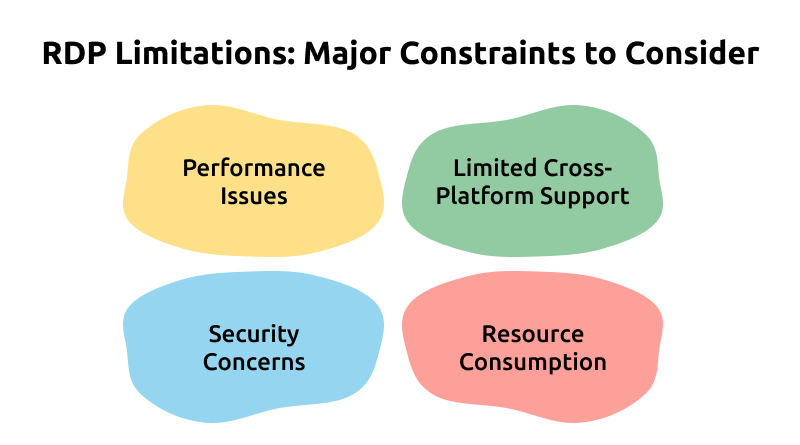
1. Performance Issues
Let’s talk about performance issues with RDP. One common gripe is the lag—sometimes it feels like you’re working through molasses. If you’re trying to run high-resolution graphics or do anything bandwidth-heavy, the slowdown can be pretty noticeable. Imagine trying to edit a video or work on a detailed design while everything is dragging; it’s not ideal.
Plus, if your internet connection isn’t the best, you might find yourself staring at a spinning wheel or experiencing constant interruptions. For those who rely on RDP for essential tasks, these slowdowns can really impact productivity and make remote work more frustrating than it needs to be.
2. Limited Cross-Platform Support
Another thing to consider is limited cross-platform support. RDP is great if you’re sticking with Windows, but it can be a bit of a hassle if you need to connect to macOS or Linux systems. You can do it, but it might not be the smoothest ride. You could end up needing extra tools or workarounds, which can complicate things.
So, if your work environment includes a mix of operating systems, RDP might not be the most straightforward solution. It’s worth exploring other options if you want a more seamless experience across different platforms.
3. Security Concerns
When it comes to security concerns, RDP has its share of issues. Being exposed to the internet can make it a target for cyberattacks. Think of it like leaving your front door wide open; without strong security measures, your remote sessions could be at risk. Hackers might try brute force attacks or other methods to gain access.
To keep things secure, you’ll need to set up additional protections, like strong passwords and multi-factor authentication. But adding these layers can sometimes feel like extra work, and they don’t always eliminate all the risks.
4. Resource Consumption
Lastly, let’s chat about resource consumption. Running an RDP session uses up system resources on both the client and server sides. If your server is handling multiple remote sessions or running other demanding applications, it might start to slow down or get bogged down.
This can be especially tricky if you’re using older or less powerful hardware. The added strain could lead to performance hiccups, which isn’t ideal if you’re trying to keep everything running smoothly. So, if you’re pushing your system to its limits, RDP might not be the most efficient option.
These limitations can impact how smoothly RDP works for you, so it’s good to be aware of them when deciding if it’s the right tool for your needs.
Top Secure RDP Alternatives
- AnyDesk and TeamViewer: These RDP alternatives simplify the ease of use and cross-platform compatibility. They embrace end-to-end encryption and will not open firewall ports, and a central broker is used to make connections.
- TSplus: Placed as a best RDP alternative, it has the brute-force protection with the advanced security, IP filtering and inbuilt MFA. It is based on an HTML5 web portal to avoid direct protocol exposure.
- Splashtop: Top performer and the best alternative to RDP features, streaming quality of up to 4K. It includes robust security features, including device authentication and 256-bit encryption. It is identified as an affordable RDP alternative.
- BeyondTrust (Bomgar): It is an exclusive RDP alternative focused on Privileged Access Management (PAM). It enforces restricted access for users, records all sessions for auditing, and ensures zero password breaches.
- Apache Guacamole is a free RDP alternative with a clientless model. It provides secure remote desktop access through a web browser using HTTPS, keeping RDP or VNC traffic protected within a secure web connection.
Conclusion
Alright, we’ve covered a bunch of RDP alternatives, each with its own strengths and perks.We have unveiled a few of the remote desktop connection alternatives, each with its own strengths and perks. Whether you’re a small business owner, a freelancer, or just someone who needs to access your computer remotely, there’s definitely an option out there that fits your needs.
Remember, the best tool is the one that works seamlessly for you. Consider your specific requirements, budget, and the devices you’ll be using. Don’t be afraid to try out a few different options to find your perfect match.
Have you tried any of these RDP alternatives? If not, be the part of this remote working today and work smartly.
FAQs RDP Alternative
Why Might I Need an Alternative to RDP?
While RDP is a popular choice for remote access, it might not be the best fit for everyone. You may need an alternative if you prioritize enhanced security, better performance, or compatibility with non-Windows devices. Additionally, some users seek more advanced features like file sharing, remote printing, or collaboration tools that RDP might not offer.
Are These Alternative to Remote Desktop Secure?
Security is a top concern when choosing an RDP alternative. Many alternatives employ robust encryption protocols and authentication methods to protect your data. However, it’s crucial to research the security features of each option and ensure it aligns with your organization’s security standards. Implementing strong password policies and staying updated with software patches is essential for maintaining a secure remote access environment.
How Do I Choose the Best RDP Alternative for My Needs?
Selecting the right RDP alternative depends on your specific requirements. Consider factors such as the number of users, device compatibility, desired features, budget, and security needs. Evaluate the performance, ease of use, and customer support offered by different alternatives. It’s often helpful to test several options before making a final decision.
Are There Any Limitations to Using RDP Alternatives?
Like any technology, RDP alternatives may have limitations. Some might have restrictions on the number of simultaneous connections, file transfer sizes, or supported operating systems. Additionally, the performance of remote sessions can be affected by factors like network speed and device capabilities. It’s essential to assess these limitations carefully to determine if an alternative meets your specific needs.