
Log In to Your Client Area
To access advanced VPS controls, log in to your MilesWeb client area using your registered email address and password.
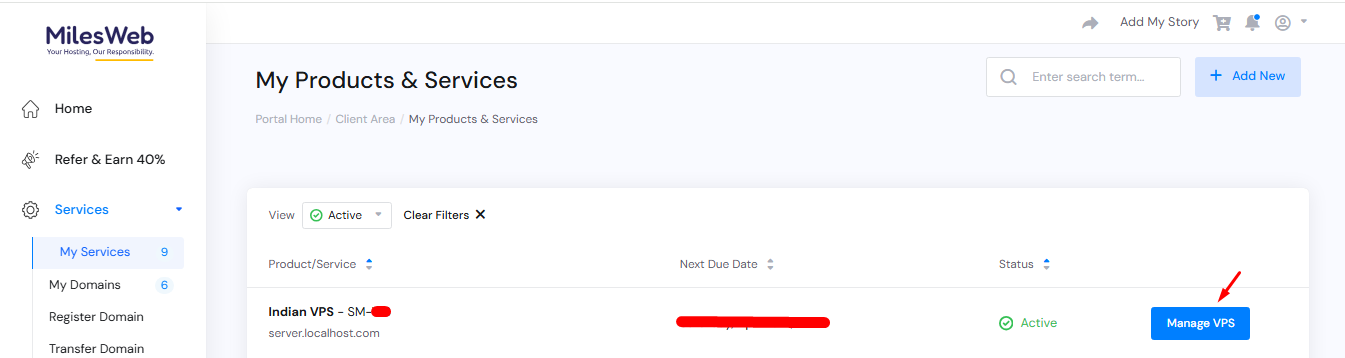
Navigate to Service > My Services
After logging in:
- Go to Service > My Services from the main menu.
- Under the My Products & Services section, locate your VPS.
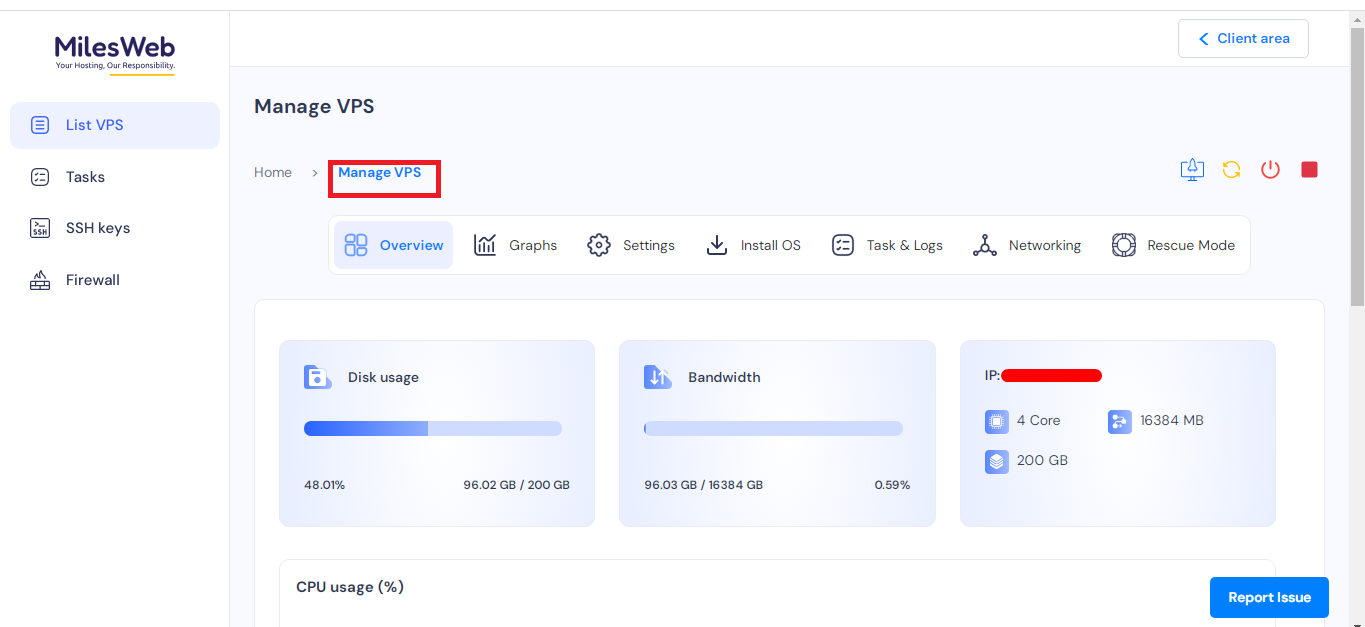
- Click on the Manage VPS option next to the VPS.
Access Graphs (Performance & Usage Insights)
Under the Manage VPS section, navigate to Graphs to monitor server performance in detail. Here, you can:
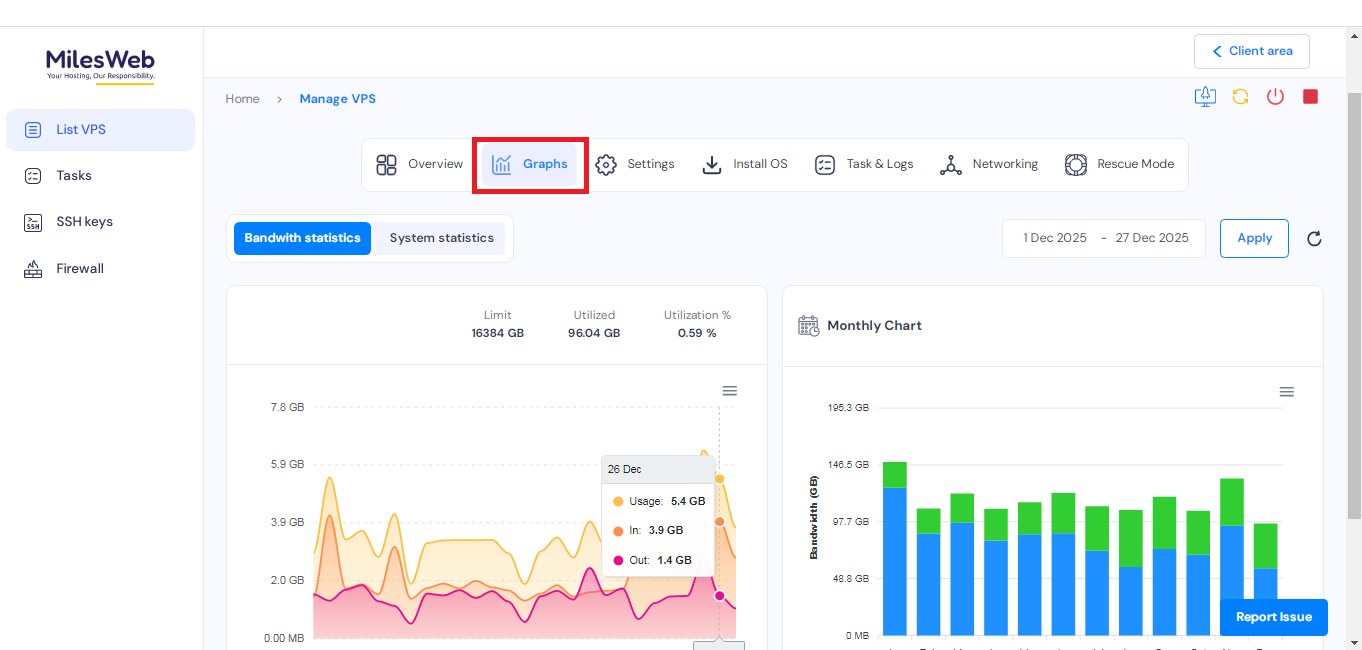
- Check bandwidth and system statistics, including CPU usage, for a customized time interval.
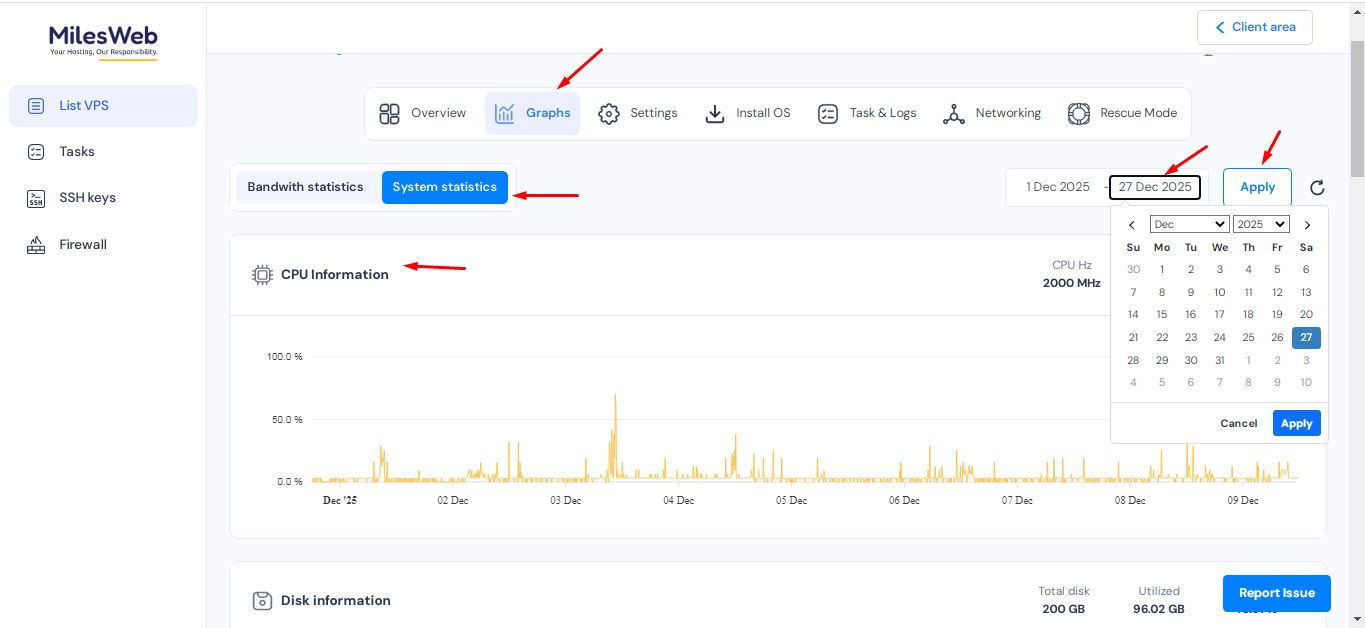
- View disk information through an easy-to-understand graphical representation.
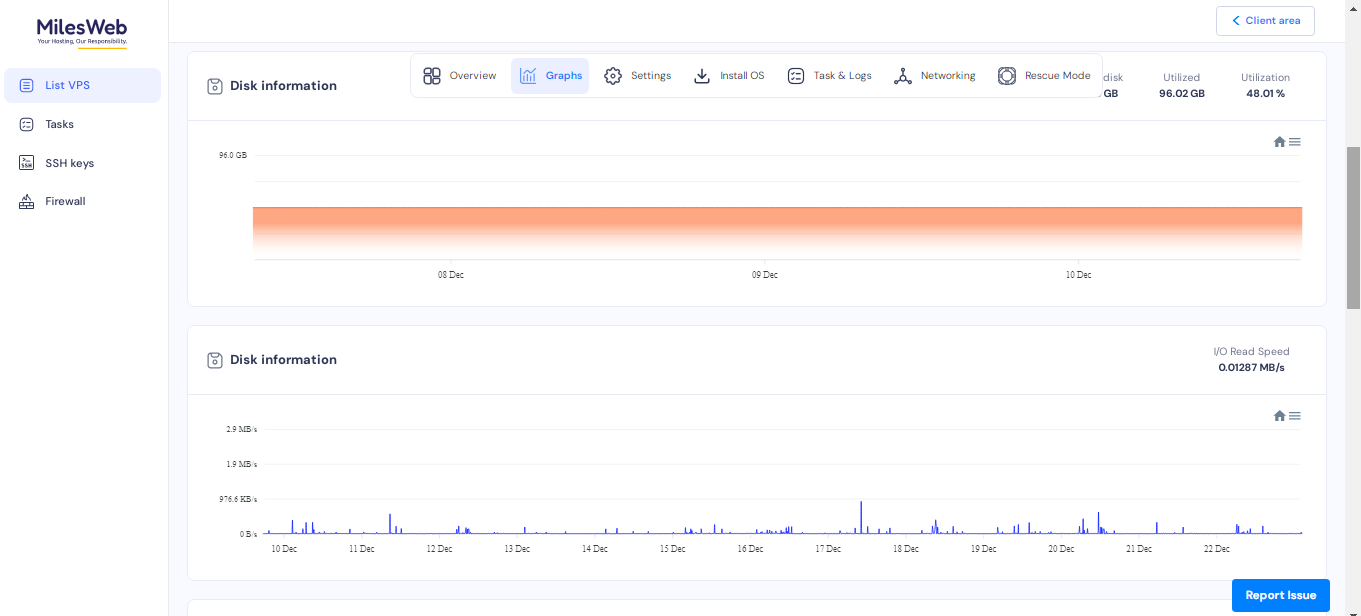
- Track network information, such as average upload and download speeds.
- Monitor Inodes information, including total inodes and utilized inodes.
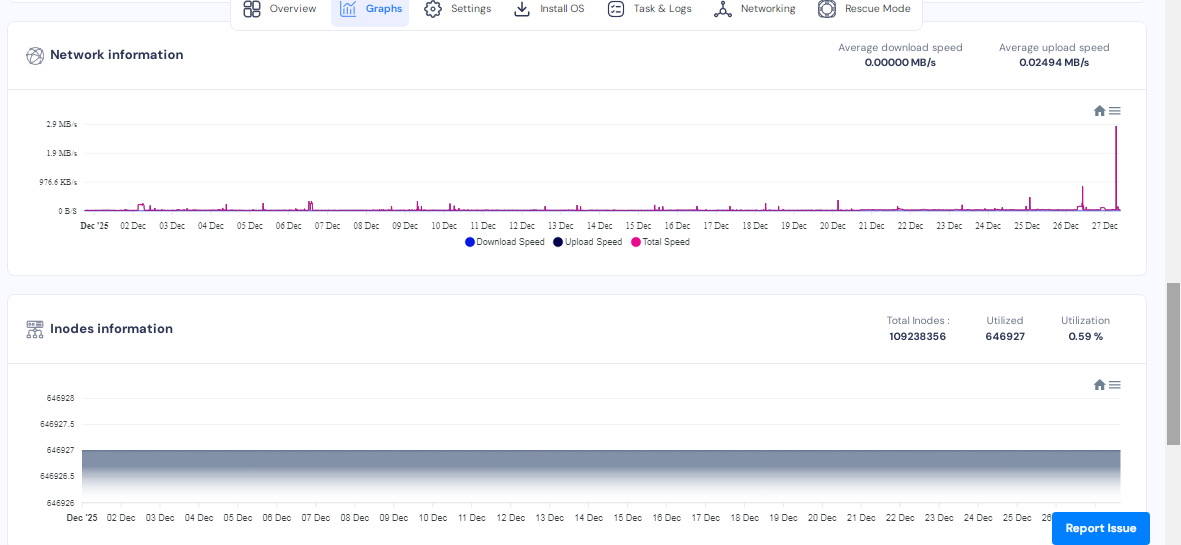
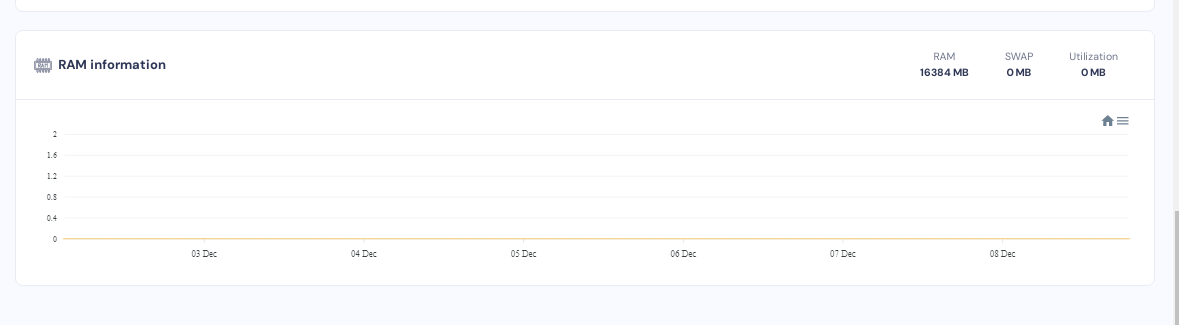
- Review RAM information to check available memory and overall RAM utilization.
Note: The graphs shown are not updated in real time; data refreshes occur at scheduled intervals.
Manage VPS Settings
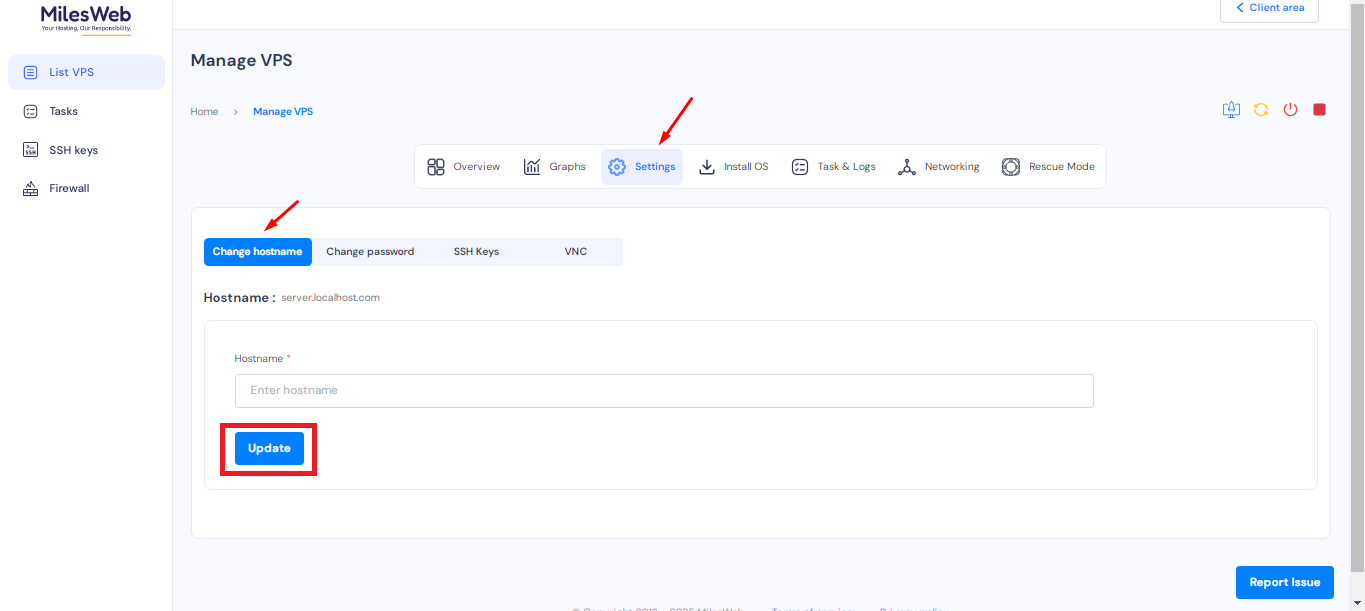
Navigate to the Settings section to make essential configuration changes.
Change Hostname
- Enter the new hostname in the provided field.
- Click Update to apply the changes.
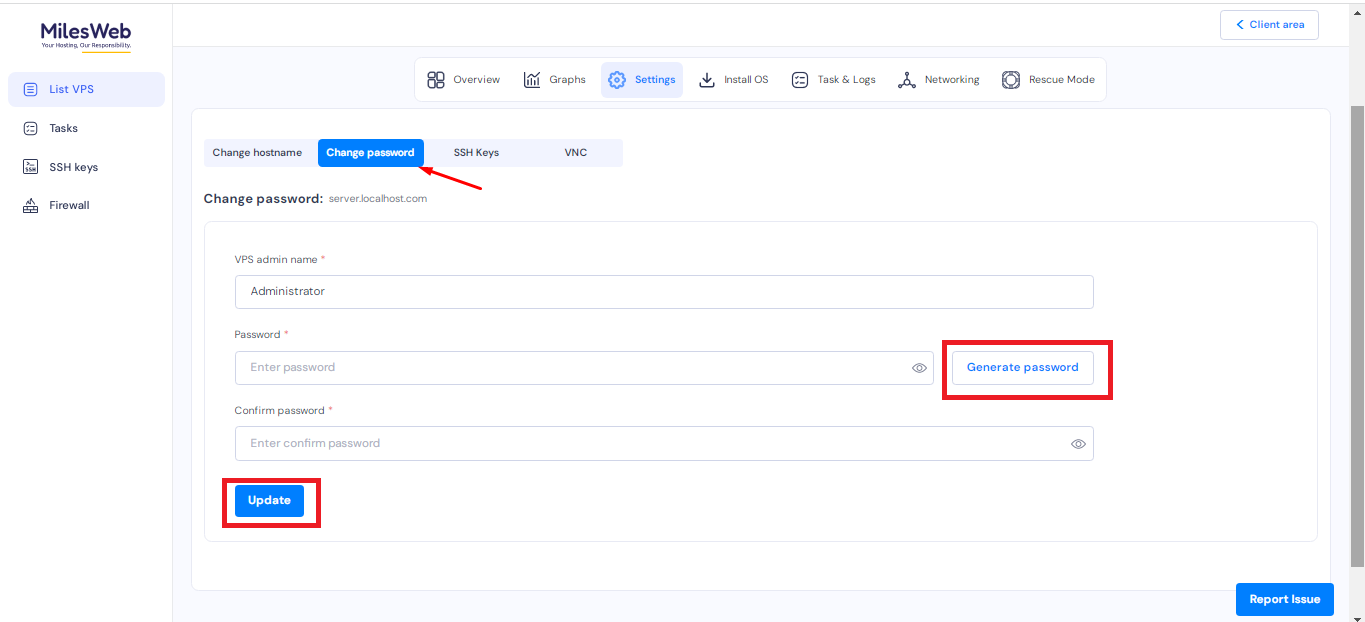
Update Password
- Go to the Change Password option.
- Enter a strong password or click Generate Password to create one automatically.
- Click Update to save the new password.
View SSH Keys
Navigate to the SSH Keys section to:
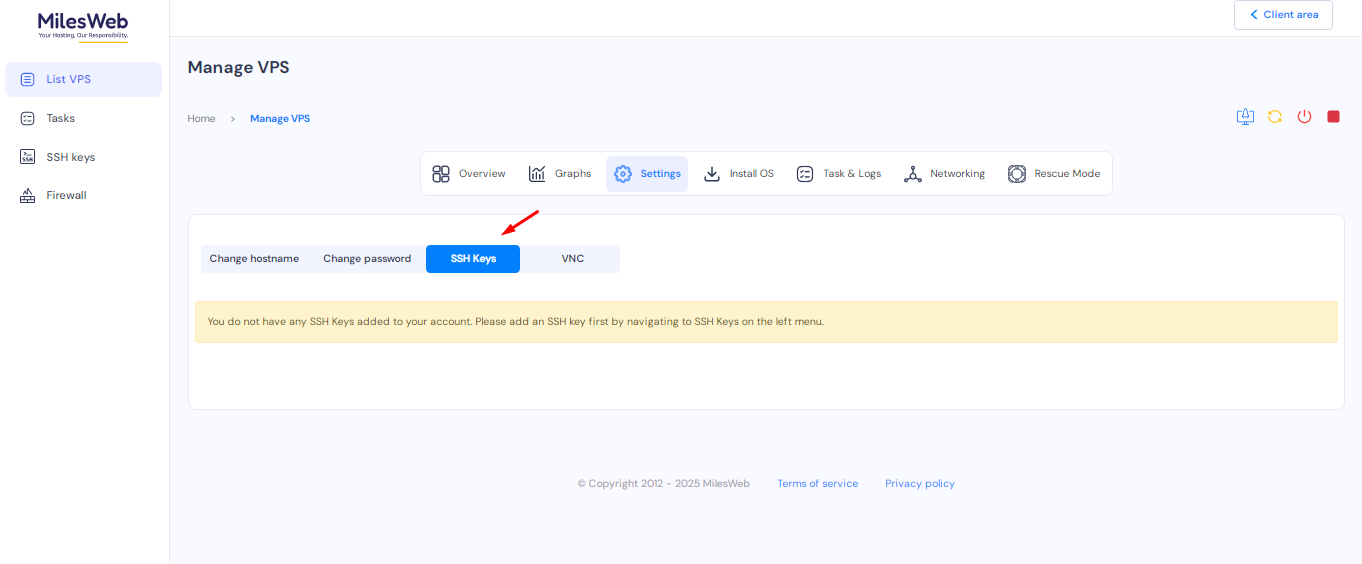
- View details of all SSH keys added to your VPS.
- Verify secure access configurations already applied to the server.
Manage VNC
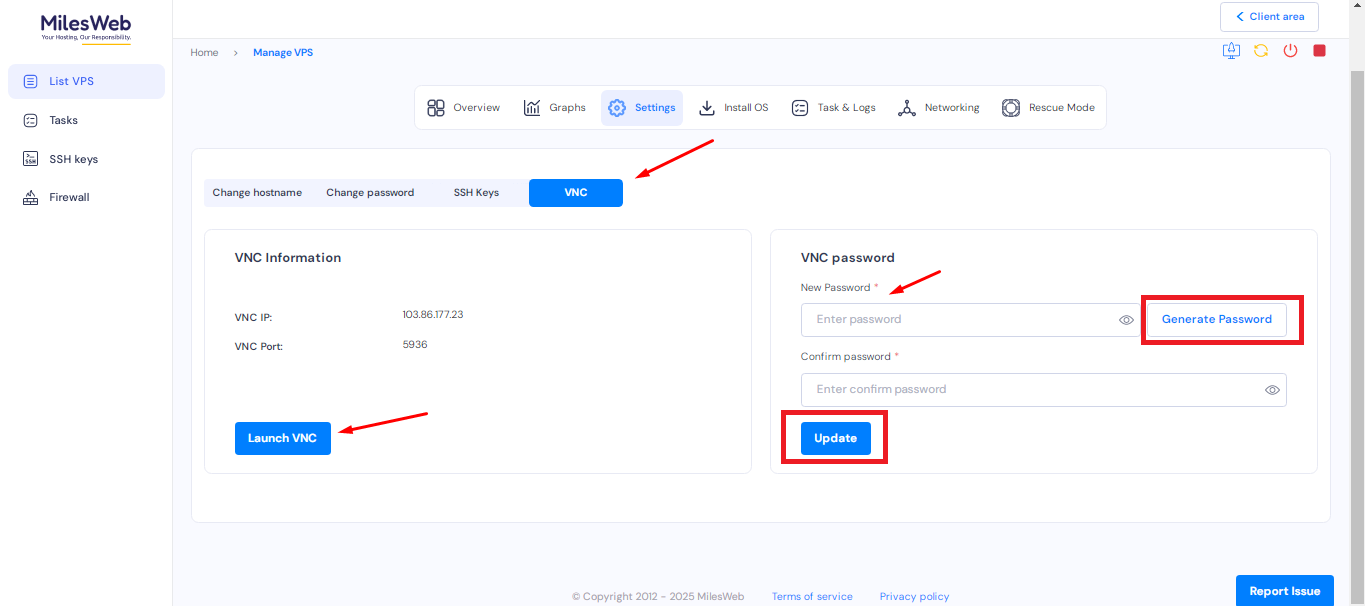
To access and manage the VNC console:
- Click on Launch VNC to open the VPS console.
- To change the VNC password, click on Generate Password to create a new one or enter a custom password.
- Once done, click Update to save the changes.
Task & Logs
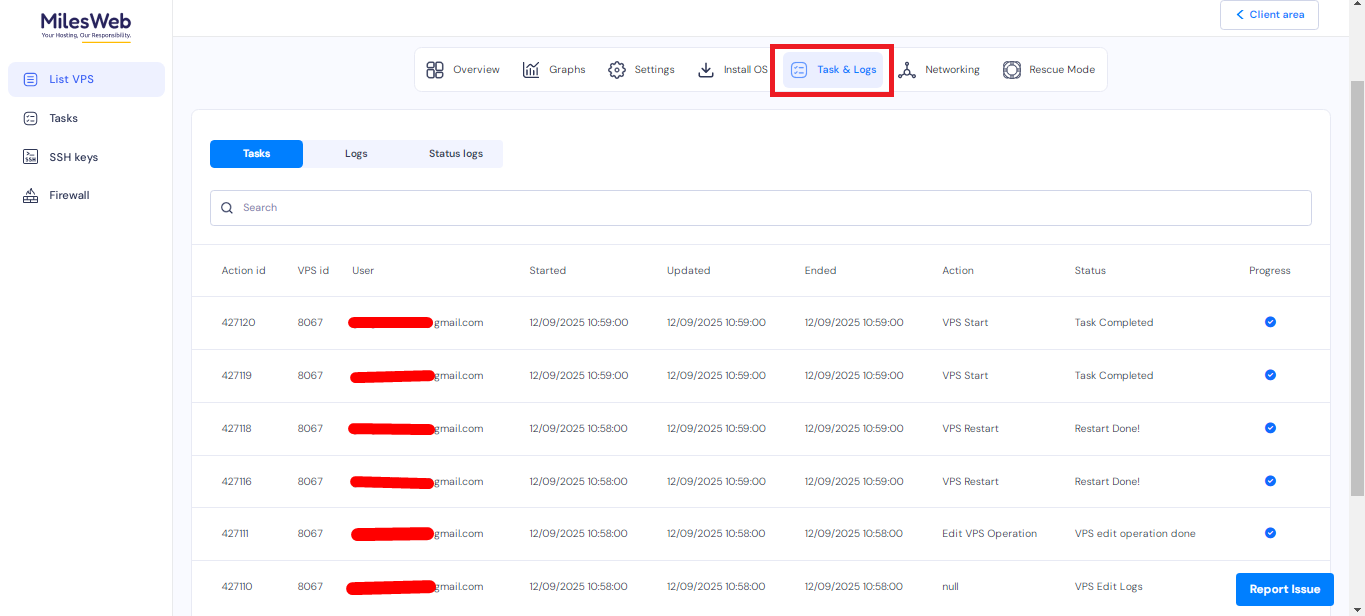
Under Task & Logs, you can:
- View complete logs of all actions performed on the VPS.
- Track tasks such as restarts, configuration changes, and other administrative activities for troubleshooting and auditing.
Networking
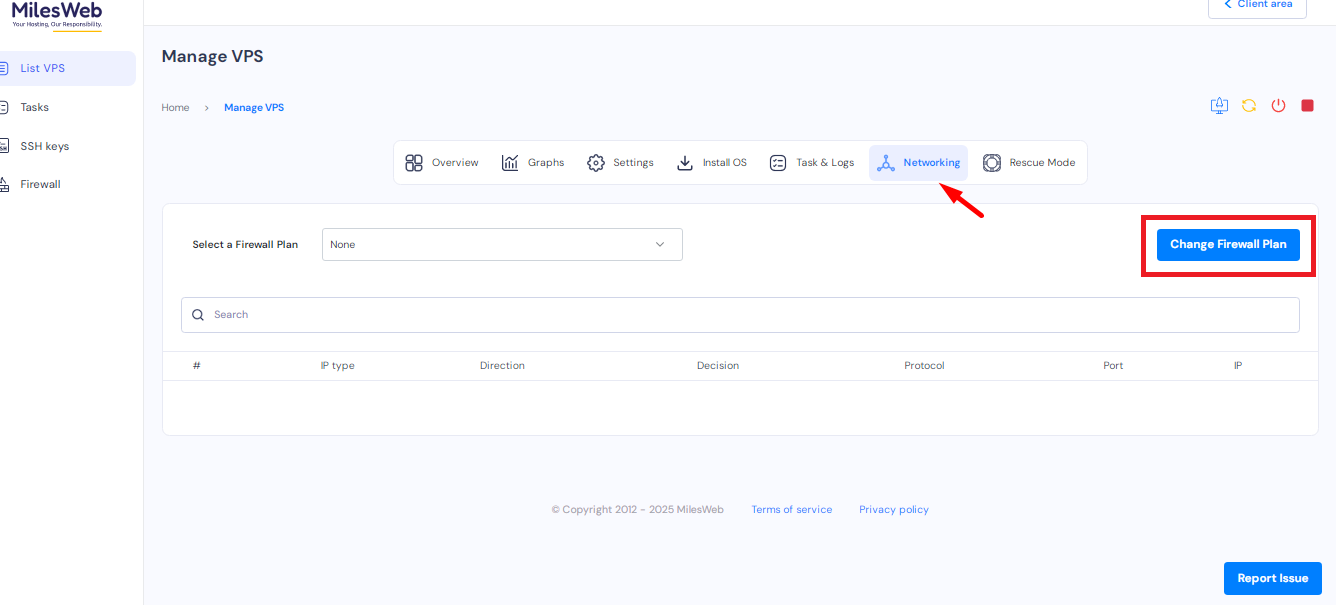
In the Networking section:
- View existing firewall plans associated with your VPS.
- Manage and update firewall rules to control inbound and outbound traffic effectively.
- Click on Change Firewall Plan if you want to make changes.
Enable Rescue Mode
Navigate to Rescue Mode when troubleshooting critical server issues:
- Enter a password and confirm it.
- Click Enable to activate rescue mode on the server.
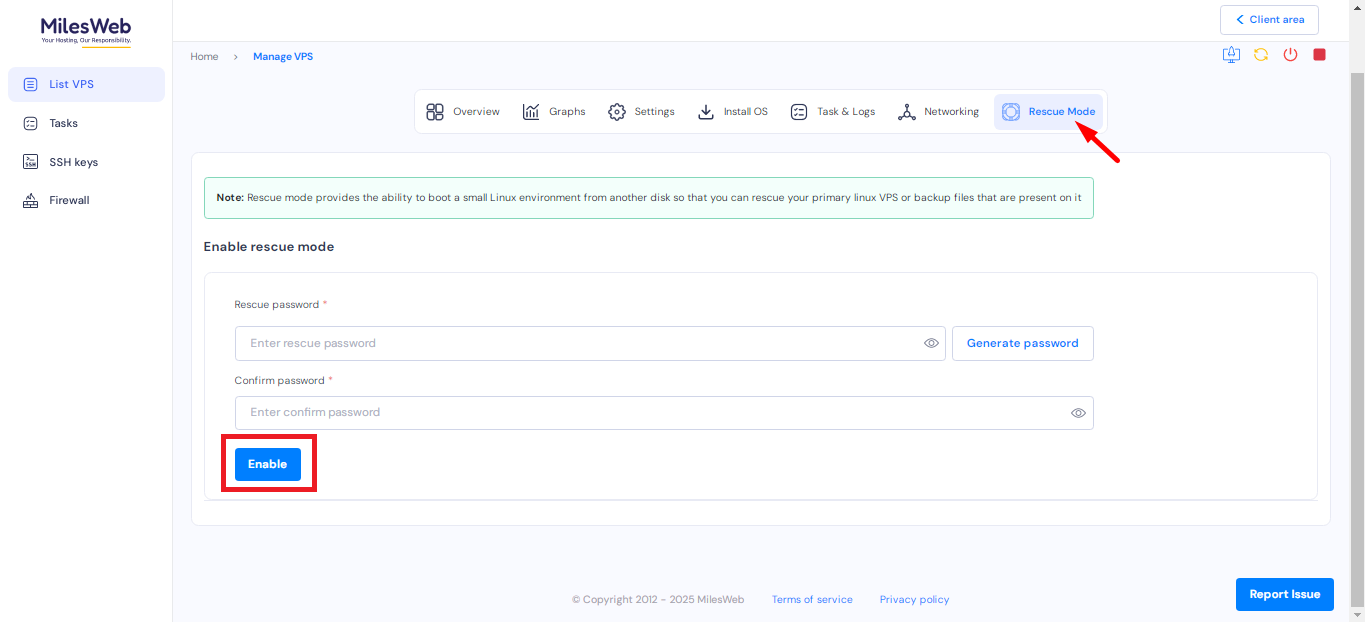
This mode helps you recover data or fix system-level issues when the VPS is not booting or accessible normally.