
Redirecting URLs is a crucial feature for managing website structure, enhancing user experience, and optimizing SEO. If you are redirecting a page permanently or setting up a temporary redirect, configuring it correctly ensures visitors are seamlessly directed to the intended destination.
This tutorial will help set up redirects through the mPanel dashboard and provide an understanding of redirect configuration details.
- First, log in to your Client Area.
- Once logged in, find and open the mPanel dashboard for your website.
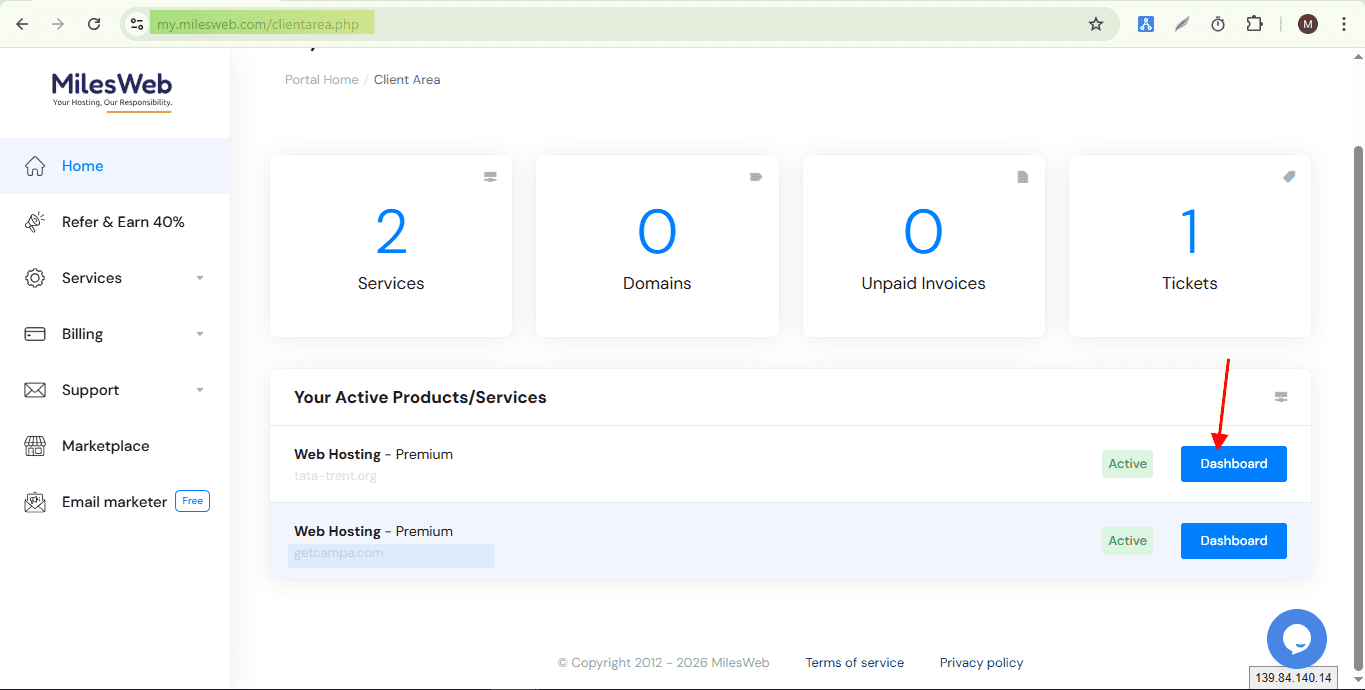
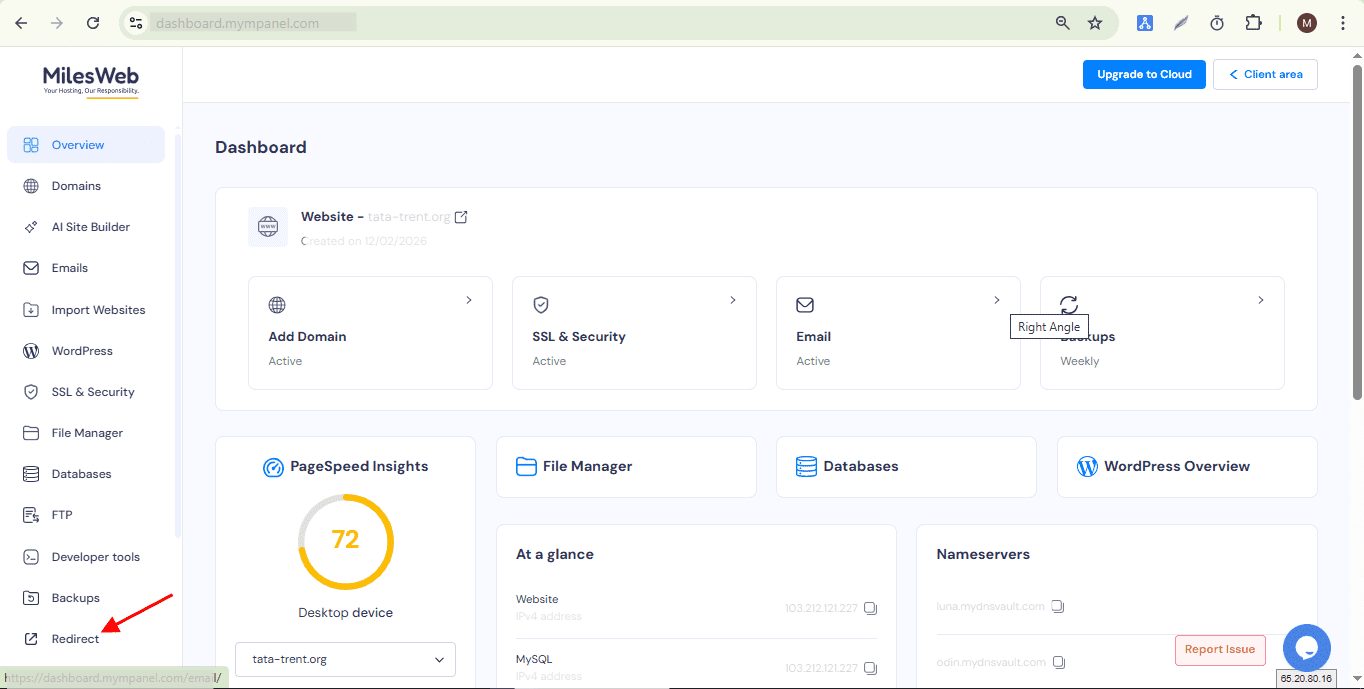
- In the dashboard menu, locate and click the option labelled “Redirect” to begin setting up a redirect.
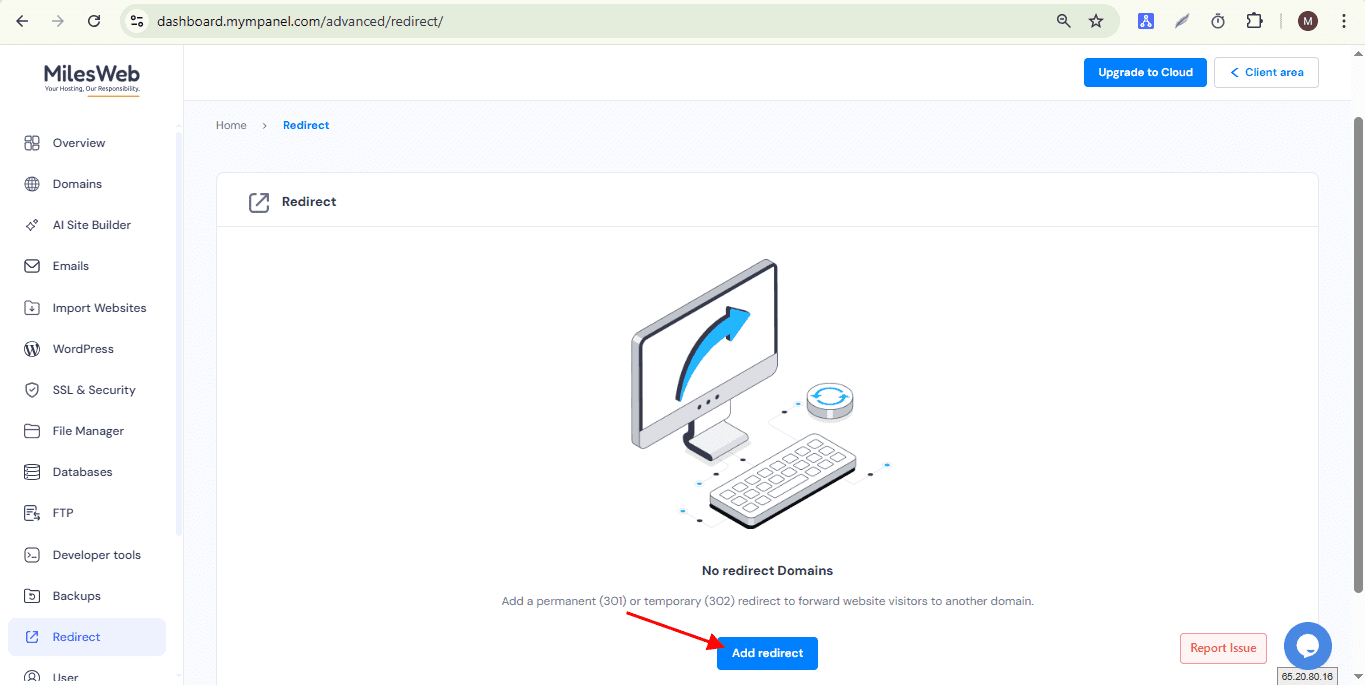
- Click on “Add Redirect” to proceed.
- Enter the required details based on your redirection requirements.
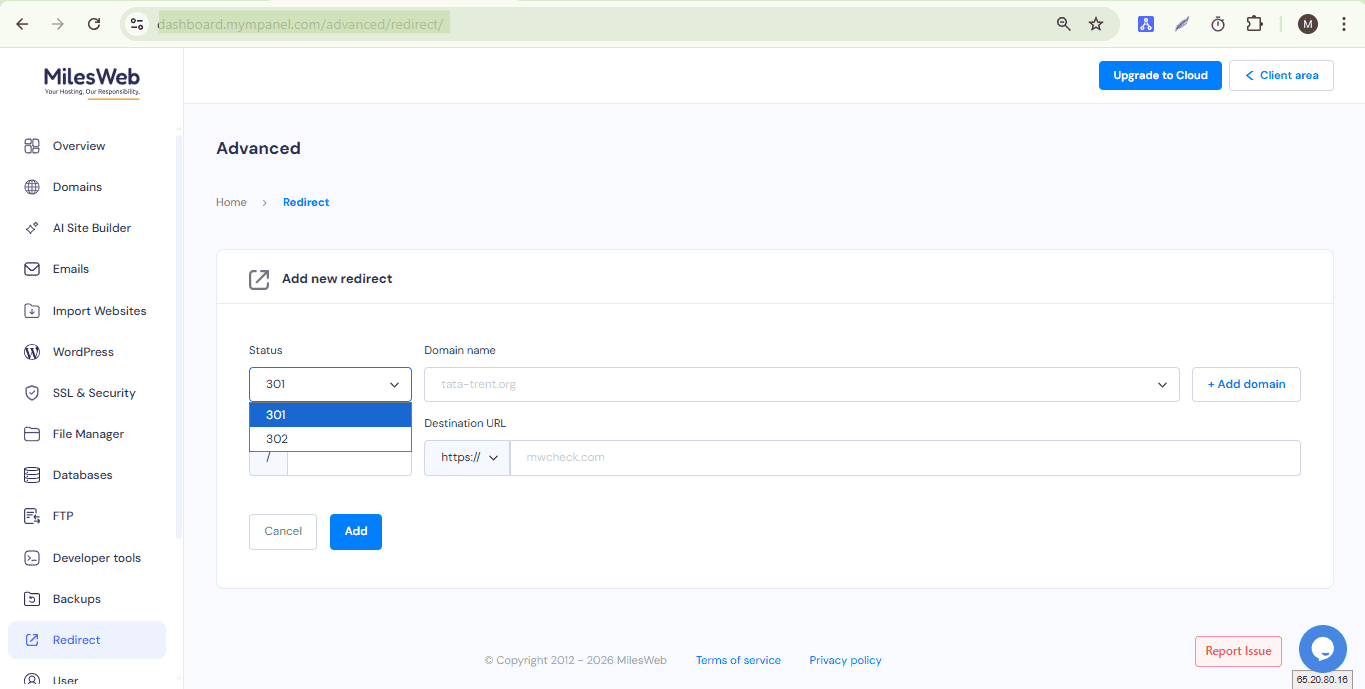
Configure Redirect Details
Provide the required information details aligned with your redirection needs:
Redirect Type
- 301 (Permanent Redirect)
- Use when the page has been permanently moved.
- The old URL will no longer be used.
- Visitors are automatically redirected to the new URL.
- Search engines transfer most of the SEO value to the new URL.
302 (Temporary Redirect)
- Use when the redirection is temporary.
- The original URL remains valid.
- Search engines may not transfer full SEO value.
- Users are redirected for a limited time.
Understanding the “/” (Slash)
- The “/” represents the root (homepage) of your website.
- Homepage redirection → Keep “/.”
- Specific page or directory → Enter the path after “/.”
Examples:
- /about → Redirects the About page
- /blog/post1 → Redirects a specific blog post
- Click on the “Add” button to apply the redirect.
After configuring the redirection, verify its functionality by visiting the old URL. Ensure you clear your browser cache to see the updated result.