
If you are not able to connect to your VPS through SSH or RDP, you can use the NoVNC viewer (available in our client area) to access the server. It allows you to log-in to the server without using any additional software. Follow the steps below to access your VPS using the VNC Viewer.
Step 1: Log in to the MilesWeb Client Area
- Sign in to the MilesWeb client area using registered email address and password.
- After logging in, you will be redirected to the Home page, where all web hosting services are listed.
- Locate the VPS hosting service and click Manage to open the MilesWeb VPS Panel.
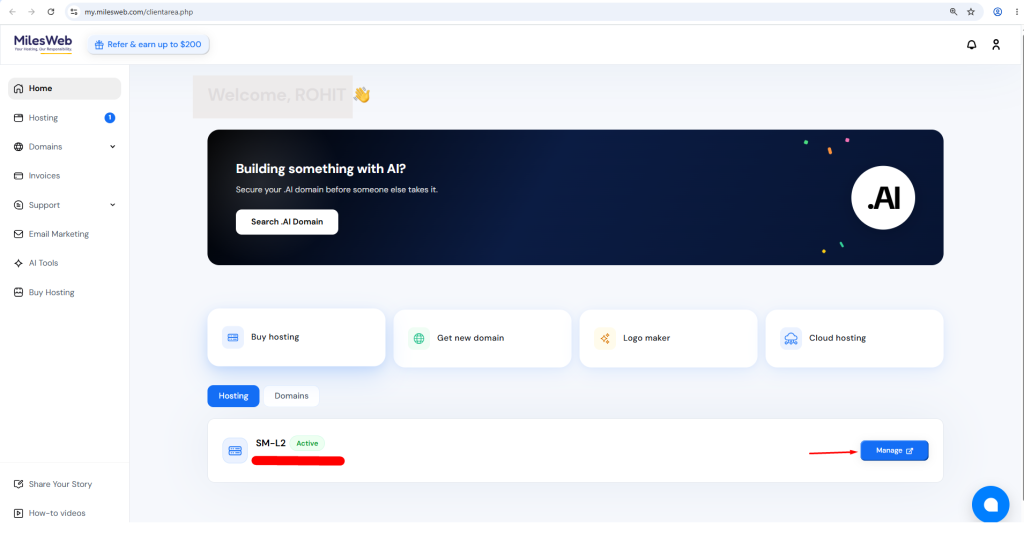
Inside the VPS Panel, you will find a list of all the VPS instances associated with your account.
Step 2: Select the VPS You Want to Access
- In the MilesWeb VPS Panel, navigate to the List VPS.
- A list of all VPS instances are displayed.
- Click the Hostname or IP addresses of the VPS server you want to manage.
This will open the management page for the selected VPS.
Step 3: Launch the NoVNC Viewer
- Locate the Action section on the VPS management page.
- Click the Launch NoVNC Viewer button.
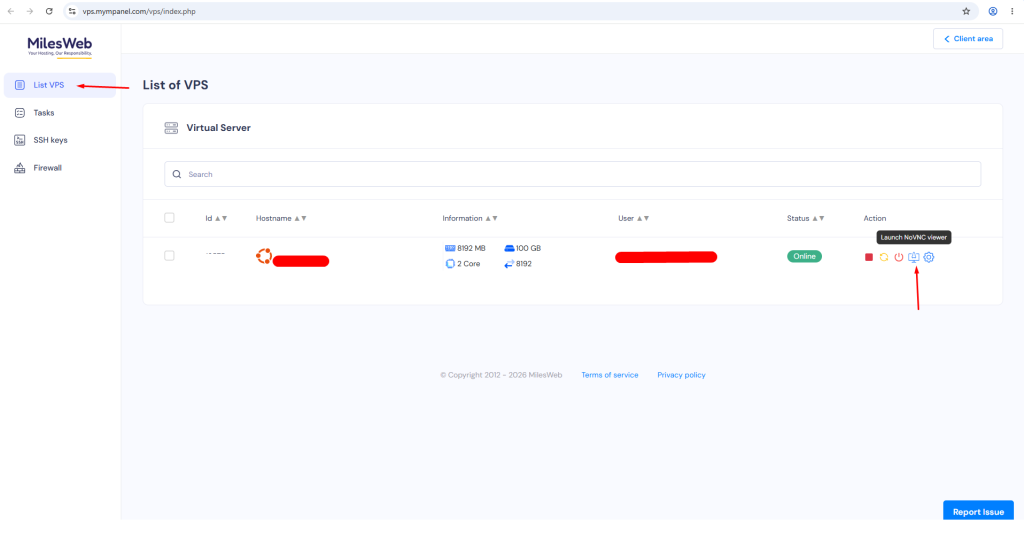
The NoVNC console opens in a new browser window, providing direct console access to the VPS.
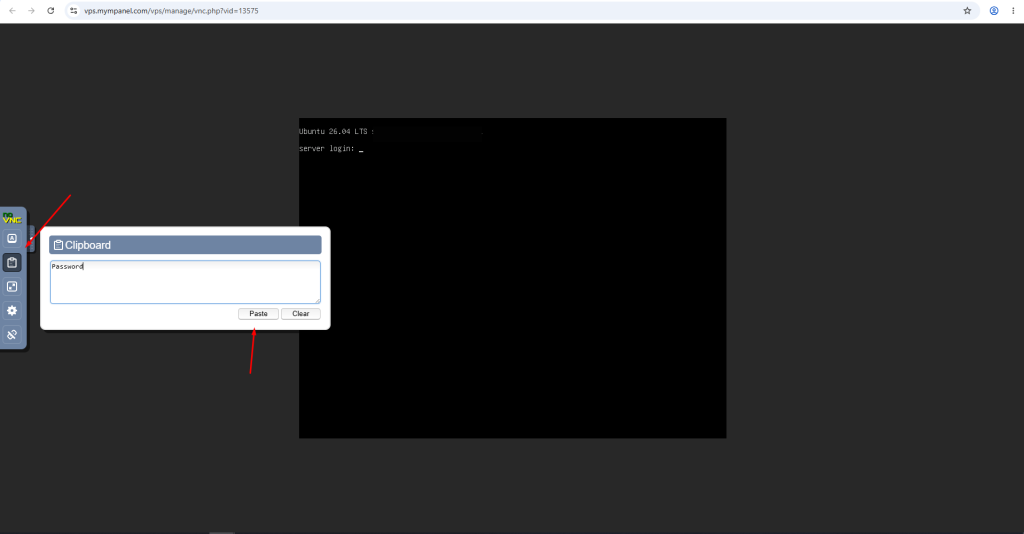
Step 4: Log in to Your Server
- Copy the VPS root/administrator password which you have received.
- In the NoVNC console, click Paste to insert the password into the login prompt.
- Authenticate by pressing Enter.
Once the credentials are verified, you will be logged in to the VPS and can begin managing server through a web-based console.
The NoVNC Viewer offers the quick and convenient way to access VPS directly through the MilesWeb Client Area. It is especially useful when remote access methods such as SSH or RDP are unavailable or when you need console-level access to troubleshoot your server. By following the steps above, you can securely connect to your VPS and perform administrative tasks from any modern web browser.