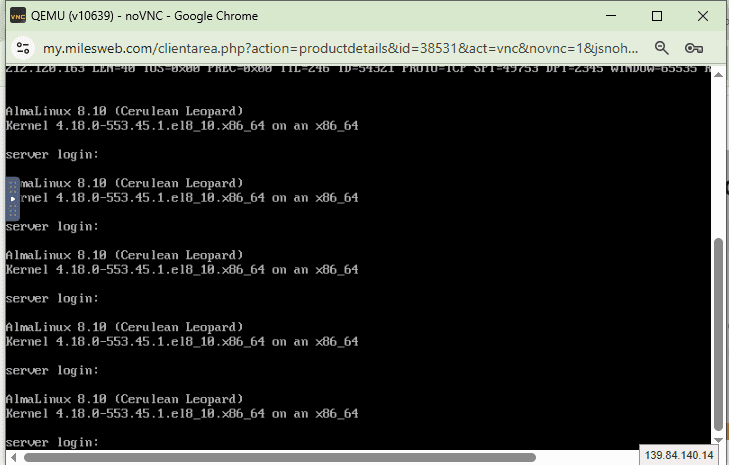
When your server faces network issues or becomes inaccessible externally via SSH or RDP, VNC (Virtual Network Computing) provides a reliable way to access it directly through the console. VNC allows you to interact with your server even when standard network connectivity is disrupted.
Follow the steps below to access your server via VNC from the client area:
Step 1: Log In to Your Client Area
Log in to your client area using your authorized credentials.
Step 2: Locate & Manage the Required Server
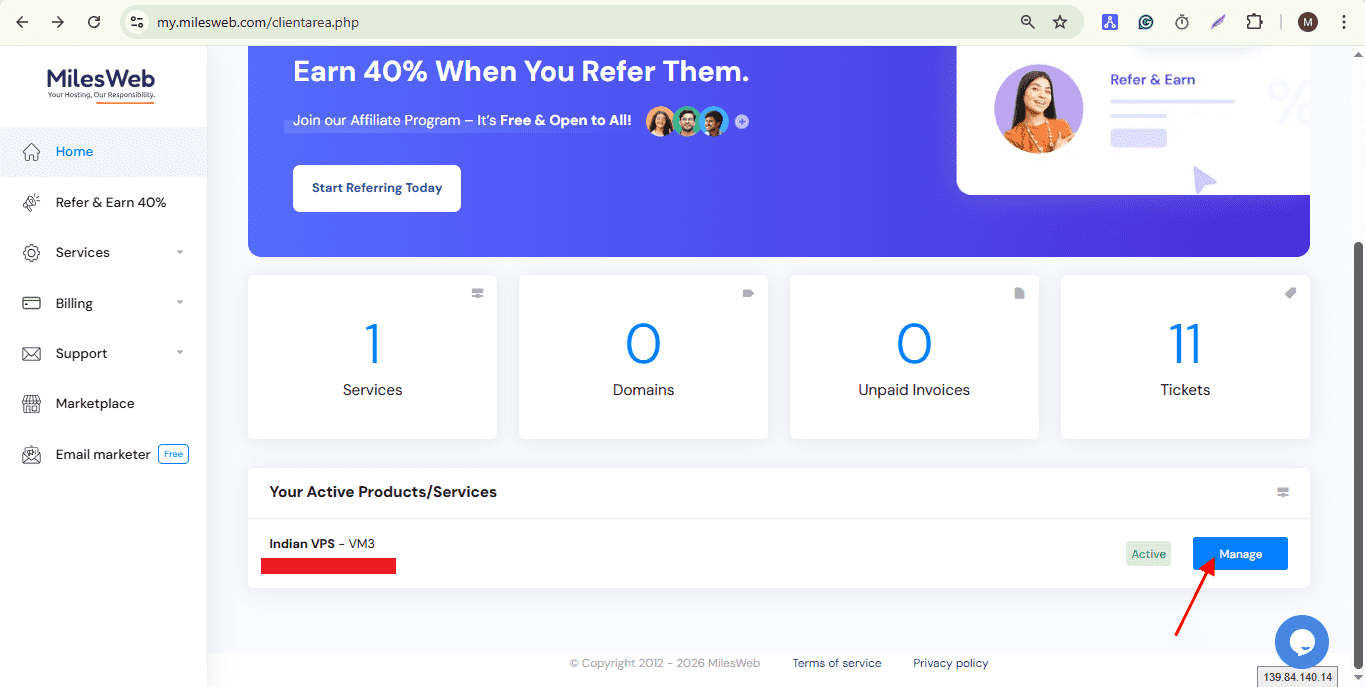
After logging in, navigate to the Home page.
- Here, find the Your Active Products/Services section, which lists all services associated with your account.
- Identify the server you want to access.
- Click on the Manage button displayed in front of the selected product.
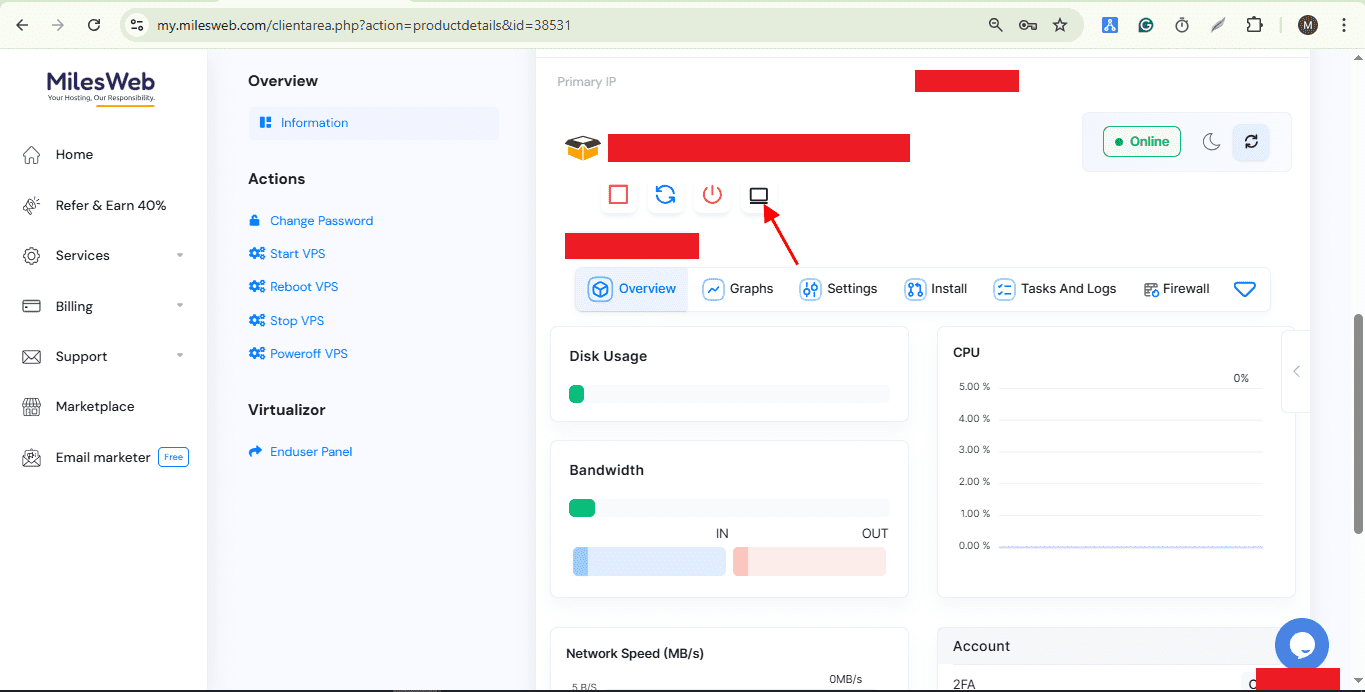
Step 4: Open the VNC Viewer
Inside the service management interface, locate and click on the VNC Viewer icon.
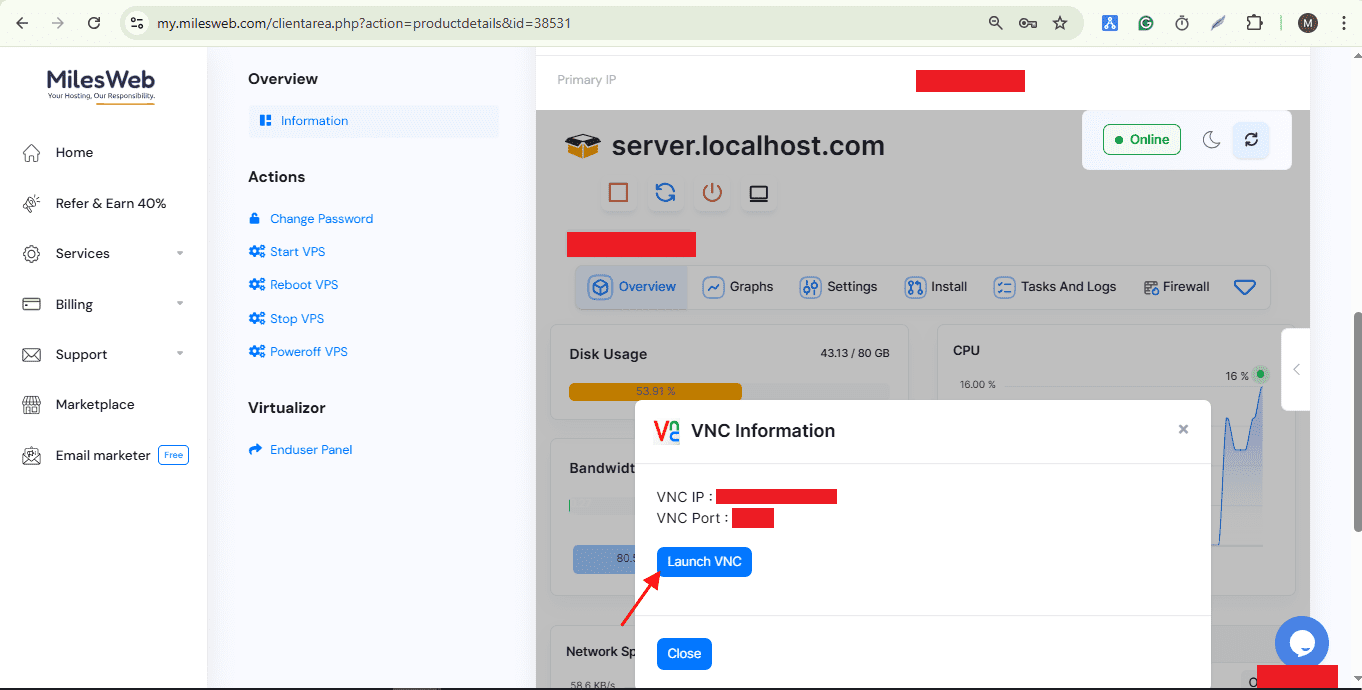
Step 5: Launch the VNC Console
In the VNC Information section, click on Launch VNC.
This will open the VNC console in a new window, allowing you to access your server directly.